Website powered by

This is normal 1: What normal maps are and how they work.

Tutorial / 16 June 2019

Throughout the years, I have been trying to understand normal mapping and the problems that usually appear when working with them. 

Most explanations I found are usually too technical, incomplete or too hard to understand for my taste, so I decided to give it a try and explain what I gathered. I recognize that these explanations may be incomplete or not 100% accurate, but I want to try anyway. 

Normals

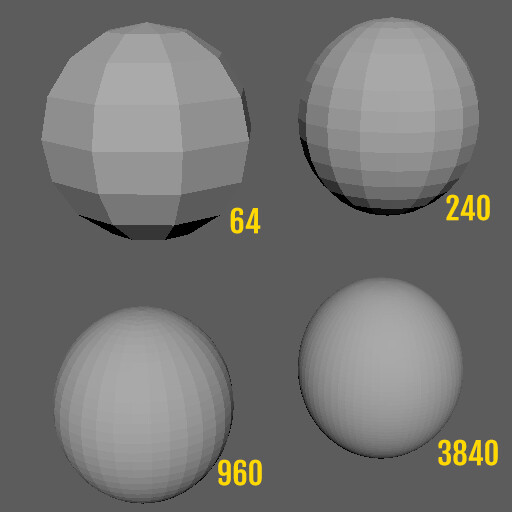
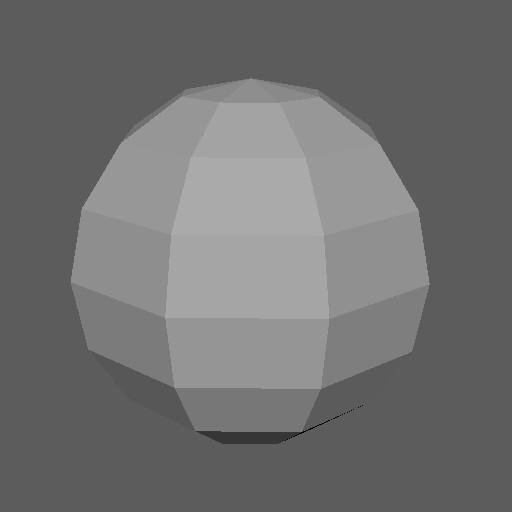
The first 3D models ever made looked something like this:

This was great, but it had an obvious limitation: it looked too polygonal.

The first obvious solution was to add more polygons, making the surface more even and smooth, up to a point where the polygons would look like a single, smooth surface. Turns out this needs a huge amount of polygons (specially at the time) in order to make surfaces such as a sphere look smooth.

Another solution was needed, and thus normals were invented. (Not really, but its easier to explain and understand.)

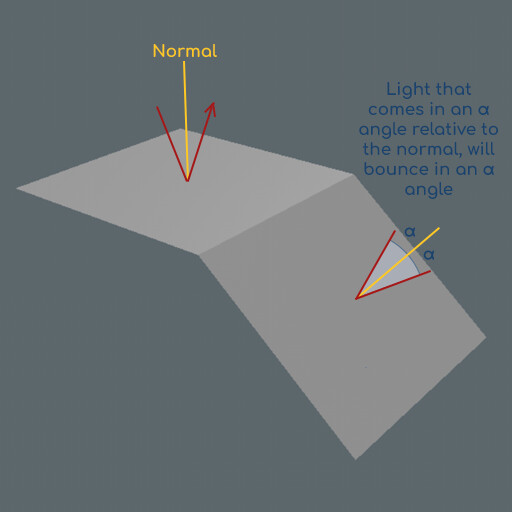
Let's trace a line from the center of a polygon, completely perpendicular to its surface. We will call this line the super confusing name of : normal.The purpose of this normal is to control where a surface is pointing, so that when light bounces from this surface, it will use this normal to calculate the resulting bounce.When light hits a polygon, we compare the angle of the light ray to the normal of the polygon. Light will get bounced back using the same angle relative to the normal direction:

In other words, the light bounce will be symmetrical relative to the polygon normal. This is how most bounces work in the real world.By default, all polygons bounce light rays completely perpendicular to their surface (as they would in real life), because polygon normals are, by default; perpendicular to the polygon surface. If there are gaps in the normals, we will see them as separate surfaces, since light will bounce in either one direction or the other.

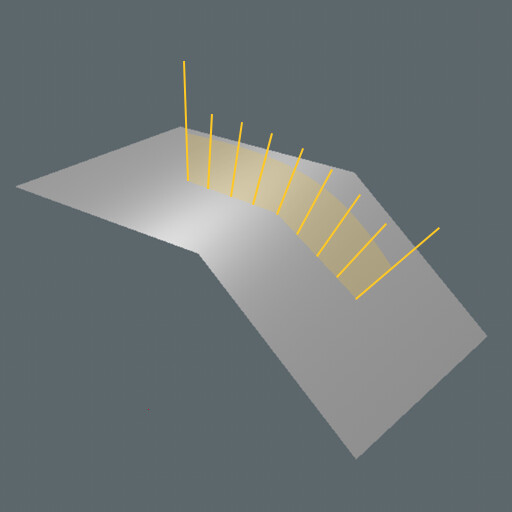
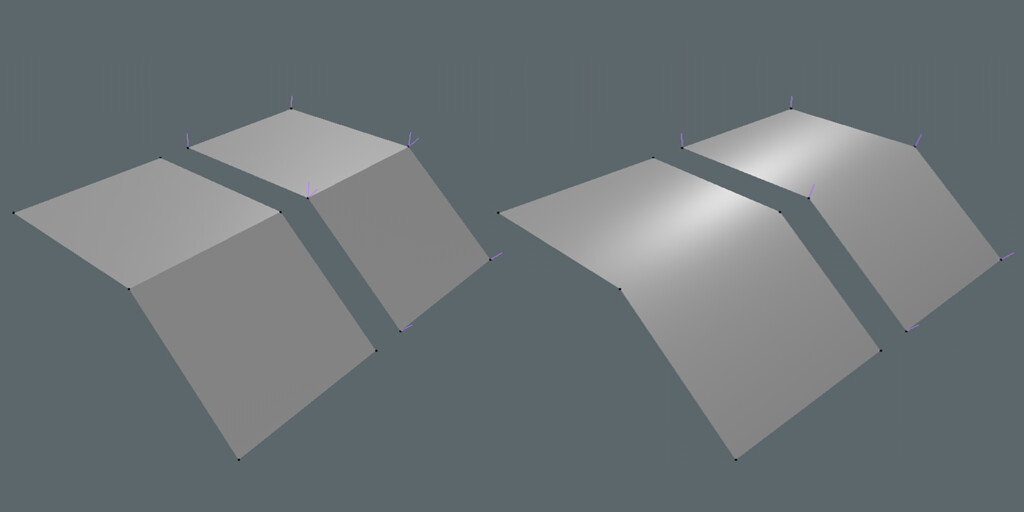
Now, if we have two faces connected, we can tell the computer to smooth the transition between the normal of one polygon to the other so the normal gradually aligns with the closest polygon normal. This way, when light hits one polygon directly in its center, light will bounce straight, following the normal direction. But, in between polygons, this normal direction is smoothed, bending how light bounces. 

We will percieve the transition as a single surface, as light will bounce from one polygon to the other in a smooth fashion, and there will be no gaps. Effectively, the light bounces from these polygons smoothly, as it would do if it had a ton of polygons. 

This is what we are controlling when we set smoothing groups (3ds Max, Blender) or set edges to be hard or smooth (Modo, Maya): we are telling the program which transitions between faces we want to be smooth and which we want to be hard.

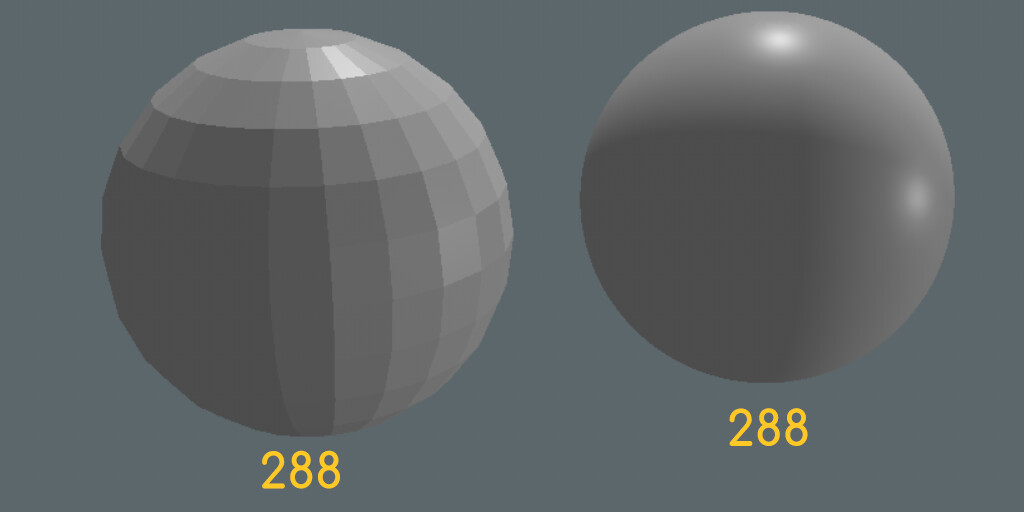
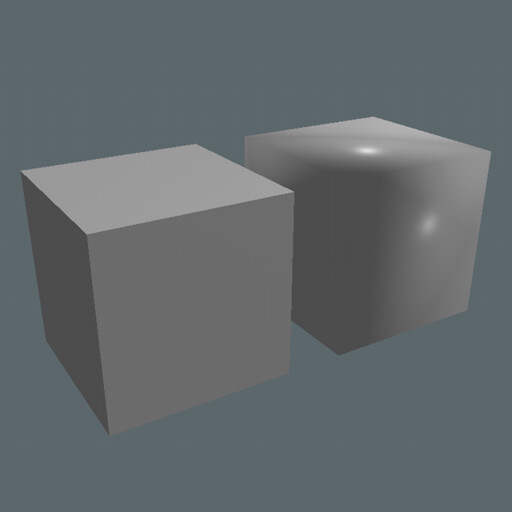
Here's a comparison of the same sphere with hard and smooth transitions, both with 288 polys:

We could potentially set something like a box so that all its vertices have averaged normals. The 3D software will try to smooth its surface, so it looks like a single, smooth surface. This makes perfect sense for the 3D program, but it looks very weird because we have something that should have several separate surfaces (each face of the box) but the program is trying to show it as a single, smooth surface.

This is why we usually have a smoothing angle setting in 3D software: if we have 2 connected polygons in an angle greater than this smoothing angle, their transition will be soft, and polygons connected in an angle smaller than the smoothing angle will be hard.  This way, extreme angles between surfaces will be shown as different surfaces, as they would in the real world. 

So, we used normals to control the transitions between faces in our model, but we can take this a step further. 

Since we are changing how light bounces from an object, we can also make a very simple object bounce light as a complex one would. That is a normal map. We use a texture to bend the direction of the light that bounces from a 3D object, making it look more complex than it really is.

A real life example of this would be those holograms that were gifted back in the day with potato chips (at least here in Spain). These are completely flat, but bounce light in a way that's similar to how a 3D object would, making it look more complex than it really is. In the 3D world these work even better, but still have some limitations (since the surface would still be flat).

Vertex normals

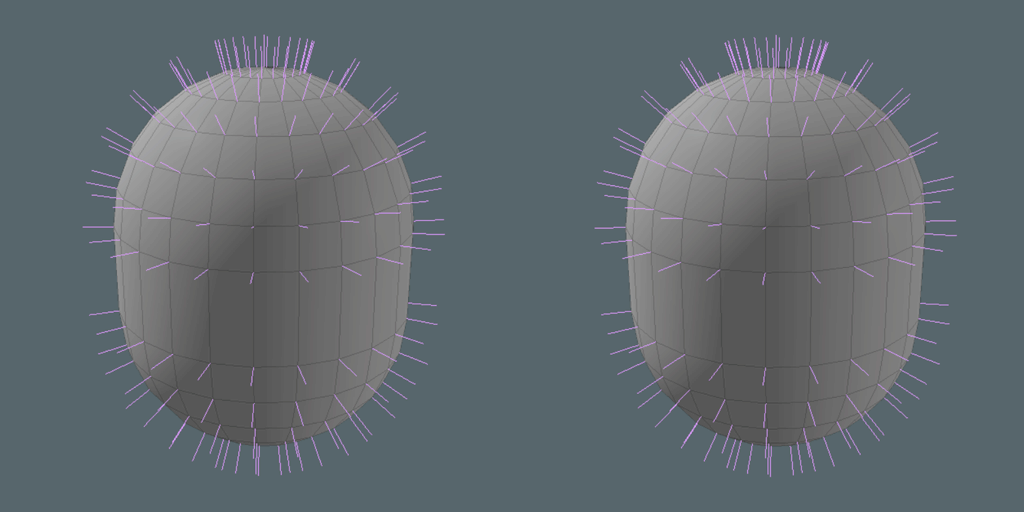
While we do use the normals of the polygons for some other black magic related things, we don't actually control the smoothing of our model surface using the polygon normals. We use the vertex normals to control the smoothing of our normals. This is basically the same idea, but a little bit more complex. 

Each vertex can have one or more normals associated. If it has a single normal, we call it an averaged vertex normal and if it has more than one, we call it a split vertex normal.

Let's take two polygons connected by an edge. If the transition between the two faces is smooth (we set it to smooth in Maya/Modo, or both have the same smoothing group in Max/Blender), each vertex has a single normal, which is the average of the polygon normals (this is why its called averaged vertex normal).Important note: up until very recently, each 3D program used its own method of calculating averaged vertex normals, which meant that normal maps calculated on one program may look completely different in another 3D program. I explain more about this in the second part of this tutorial.

If the transition is hard (hard edge, or the smoothing groups are different), each vertex has several normals: one for each connected vertex, and aligned with their normals. This leaves a gap in the normals, which looks as 2 different surfaces. This is what we call a split vertex normal.

As you can probably guess, controlling the vertex normals is vital if we want to control our normal maps. Fortunately, we don't really need to directly modify the normals or even see them, but knowing how this works will help us understand why we do things the way we do and understand more about the problems we may see.

Baking normal maps

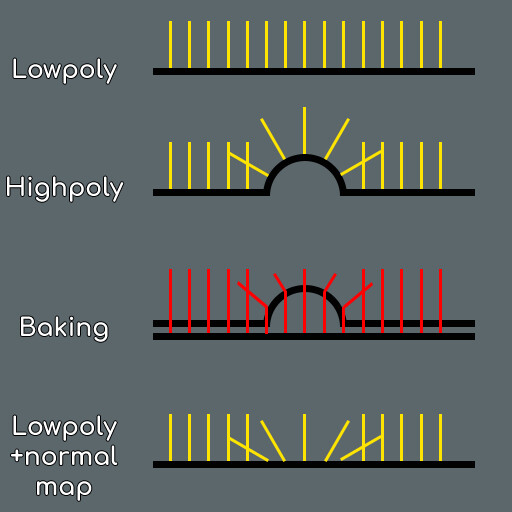
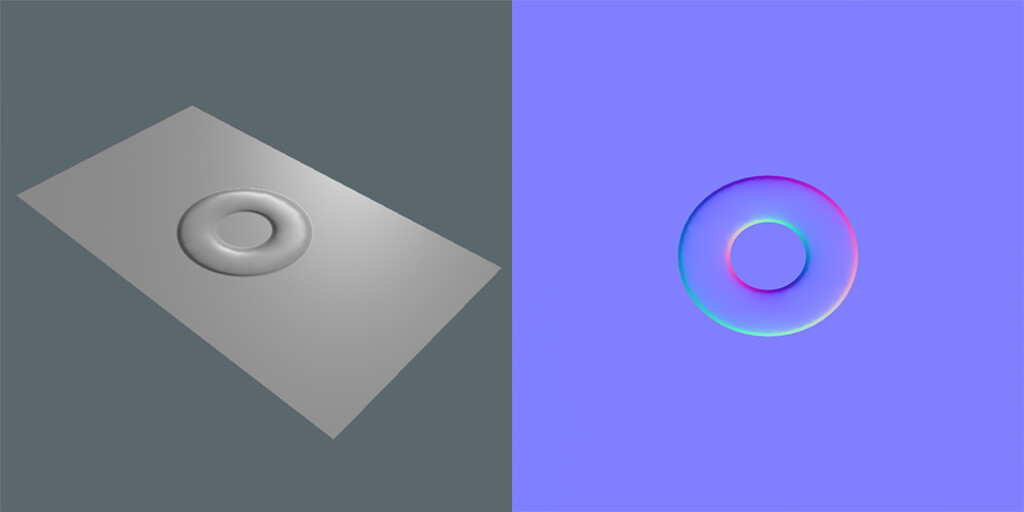
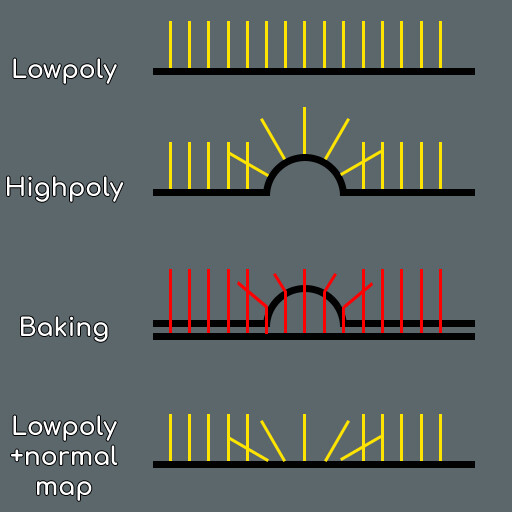
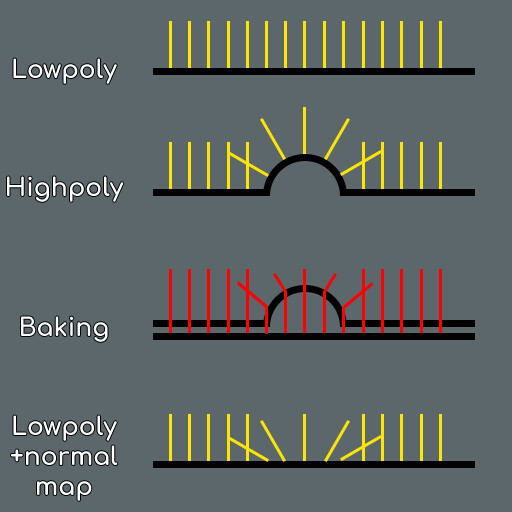
When baking a normal map, we are basically telling the baking program to modify the direction that the low poly normals follow so that the match the direction of a highpoly model; so the lowpoly model is bouncing light as the highpoly would. All this information is stored on a texture called normal map. Let's see an example.

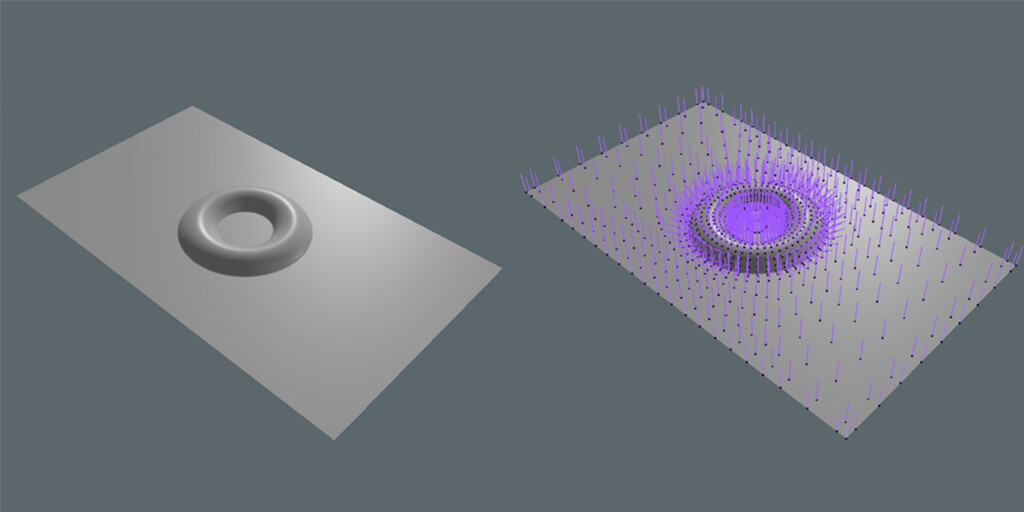
Let's say that we have a lowpoly like this. A flat plane with 4 vertices and a UV set, that our baking program will use to create the normal map.

And it has to recieve the normal information from this highpoly, whose normals are more complex. 

Keep in mind that we are only transfering normal information, so the UVs, material, topology, transformations, etc... are completely irrelevant. Rule of thumb: if your highpoly looks good, it means that its normals are good and should be fine enough for baking.

Our baking program will take the lowpoly and cast rays following the normal directions of the lowpoly (this is why we need to control the lowpoly normals). Those rays have a limited lenght, to avoid getting normal information from far away faces (usually named bake distance or cage distance). When those rays collide with the highpoly, the baker calculates how to bend those rays so they follow the same normal direction as the highpoly, and stores that information into a normal map. 

Here's the resulting bake from this example: 

We have a texture that our engine uses to modify the lowpoly normals, so light bounces on this lowpoly model as it would if it was the highpoly version. Keep in mind that this is a texture, and can't affect the silouette of your lowpoly (you can't modify how light bounces from your model if light doesn't hit your model). 

Normals can be stored as textures

While its certainly possible to "read" how our lightpoly was from looking at the normal map, its obvious that normal maps are not regular textures. This is because they don't carry color information, but normal information. This also means that normal maps should not be treated as regular textures and they have special compression and gamma correction settings, as we will see. 

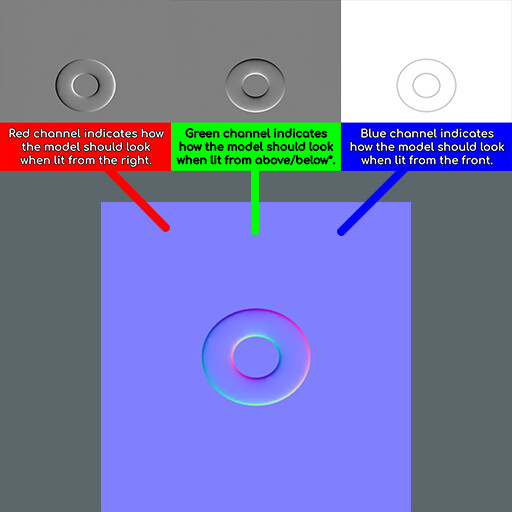
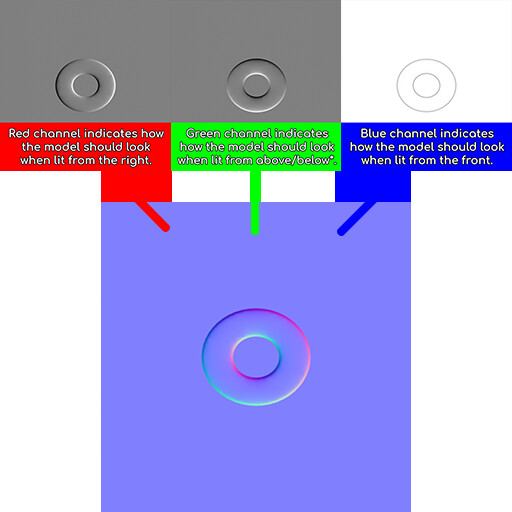
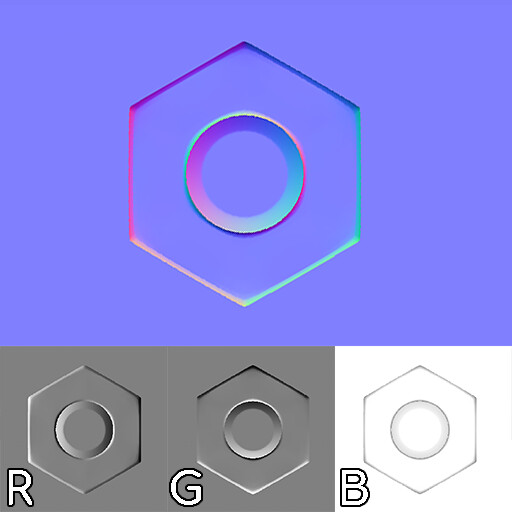
You can think of a normal map as a set of 3 greyscale textures, stored on a single image:

  • The first image is telling the engine how this model should bounce light when lit from the right side, and its stored on the red channel of the normal map texture.
  • The second image is telling the engine how the model should bounce light when lit from below*, and its stored on the green channel of the normal map texture.*Some programs use above instead of below, so we can have "left-handed" and "right handed" normal maps, and this can cause some problems as we will see later.
  • The third image is telling the engine how the model should bounce light when lit from the front, and is stored on the blue channel of the normal map texture. Since most things look white when lit from the front, normal maps usually look blueish. 

When we combine al three images on single one, we have a normal map. Please keep in mind that this explanation is not 100% accurate, but it will hopefully help you understand the information inside a normal map and have a better understanding of what it does. 

In conclusion

Normals are vectors that we use to define how light bounces from a surface. They can be used to control the transition between faces (by averaging the normals of connected vertices to make a smooth transition, or splitting them to make a hard transition), but they can also be reoriented, to make a lowpoly model bounce light as a much more complex model would.This information is stored on 3 separate channels of an image, and the 3D program reads it in order to understand which direction the surface of the model should look towards.

Now that we have a general idea of what normals are, and how a normal map works, let's talk about how we can bake these details from the highpoly into the lowpoly.

Part 2: Baking normal maps.

Part 3: Types of normal maps. 

Part 4: Normal map troubleshooting guide. 

Part 5: Normal map workflows.

PDF file (Gumroad) / PDF file (Artstation)

This is shady: What is light?

Tutorial / 06 June 2022

What is light?

If we want to learn how to replicate light, we should know how light works in the real world. 

The thing is, it’s too complicated. If we tried to replicate it exactly, it would take way too much time, so the general approach is to look for a way to get a good enough result by analyzing the different effects that form lighting, decomposing them into parts and combining them to get a good enough result.

In this article, I will try to summarize these effects and study a bit of them, so that we understand how they work and improve how we render things. I will also try to keep it simple and talk about we approach lighting in non-realtime CGI, realtime CGI and illustration so everybody can get something from it.

Let’s consider light as a series of rays (it isn’t, but it's close enough for what we need).
Light sources emit rays that scatter through the world. When those rays reach our eyes, we see the light reflecting off those objects. Based on this behaviour, we can define emission (light gets emitted from a light source), reflection (light bounces from objects), transmission (light goes through an object) and absorption (light gets absorbed by an object, heating up).


Emission

Light gets emitted from a light source when that source is at a high energy state and emits light in order to get into a lower energy state. 

In most cases, emission comes from incandescence: we charge a substance with electrical energy, and it releases the energy as light, but there are other sources (blackbody radiation, fluorescence, phosphorescence, particle acceleration, radioactive decay, lasers, fire…). 

Visually, light sources are very similar and they usually only change in intensity and color, not how they interact with matter.

In this scene, we have: a floor, a sphere that is emitting light towards the floor, and a white light.

Reflection

Light can bounce from the object, giving us reflected light. We separate reflected light in 2 different types of reflections: 

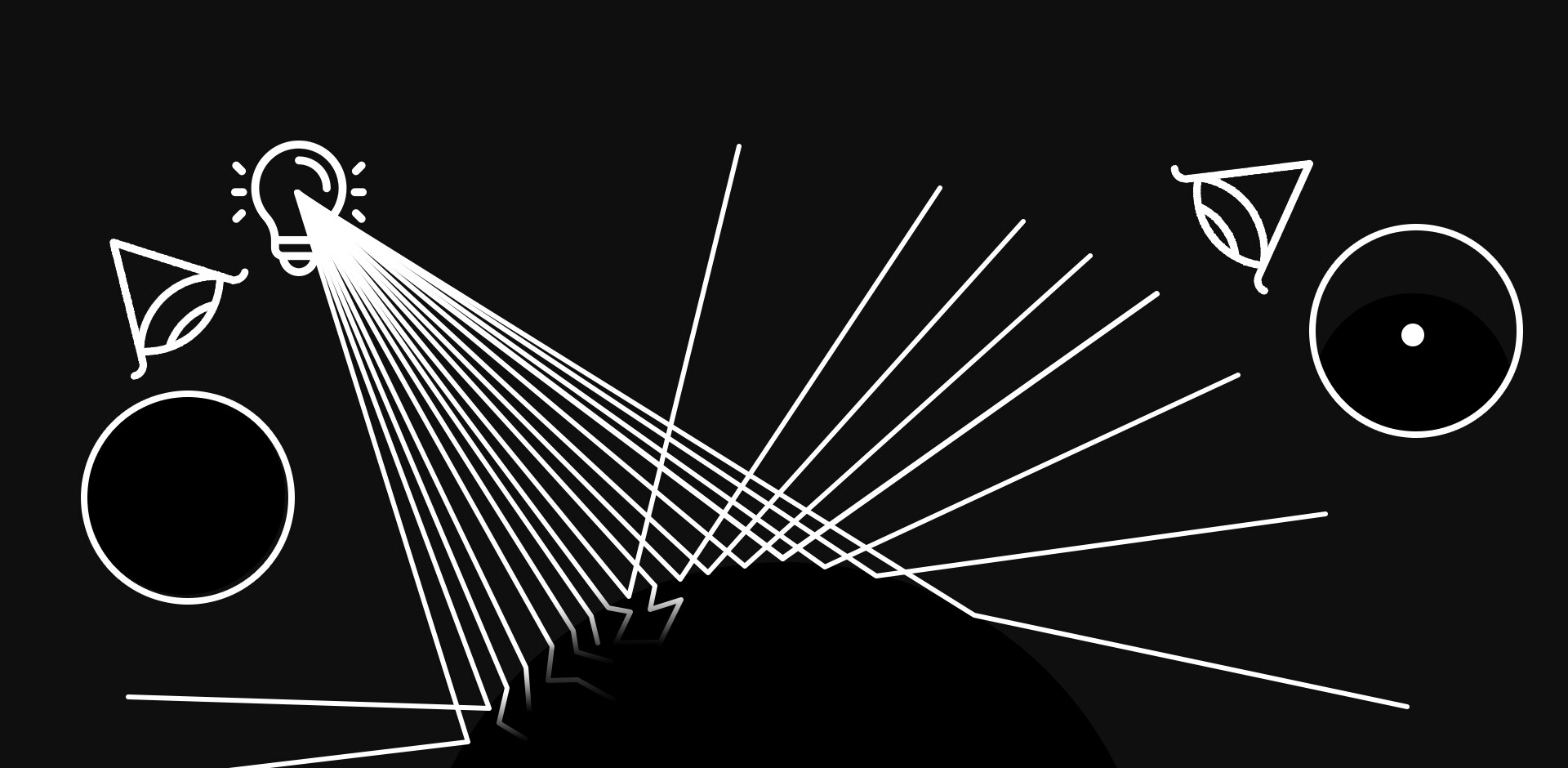
  • Diffuse Reflection: the ray of light can penetrate slightly the surface of the object, interacting with its molecules and bouncing back in a random direction. Since the light interacts with the object intensely, some part of it gets absorbed, and the reflected light is colored. Most of the reflections in a material work like this.
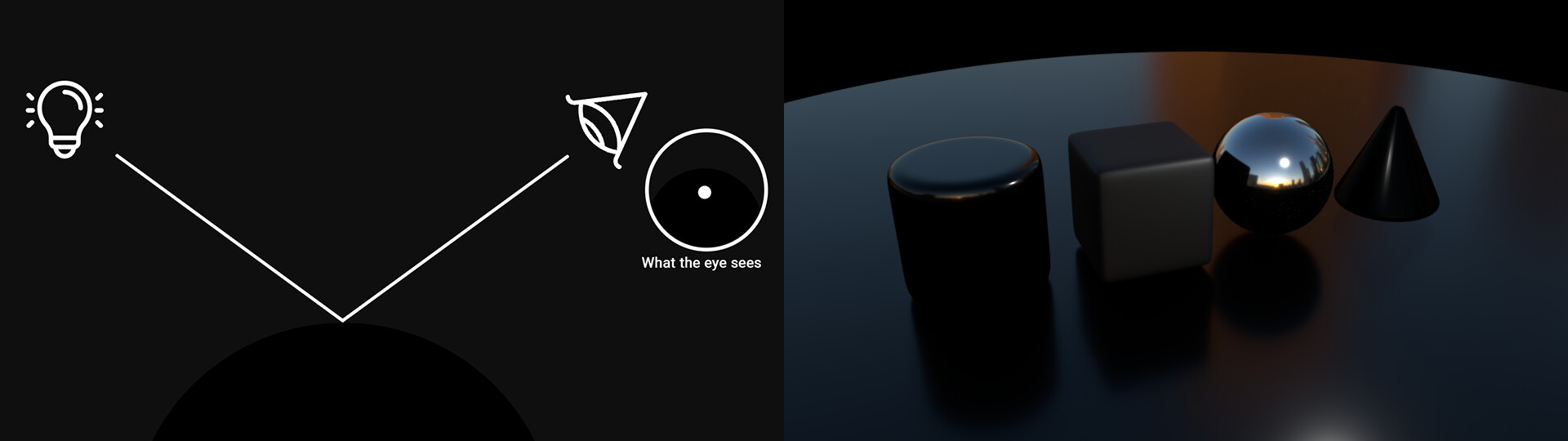
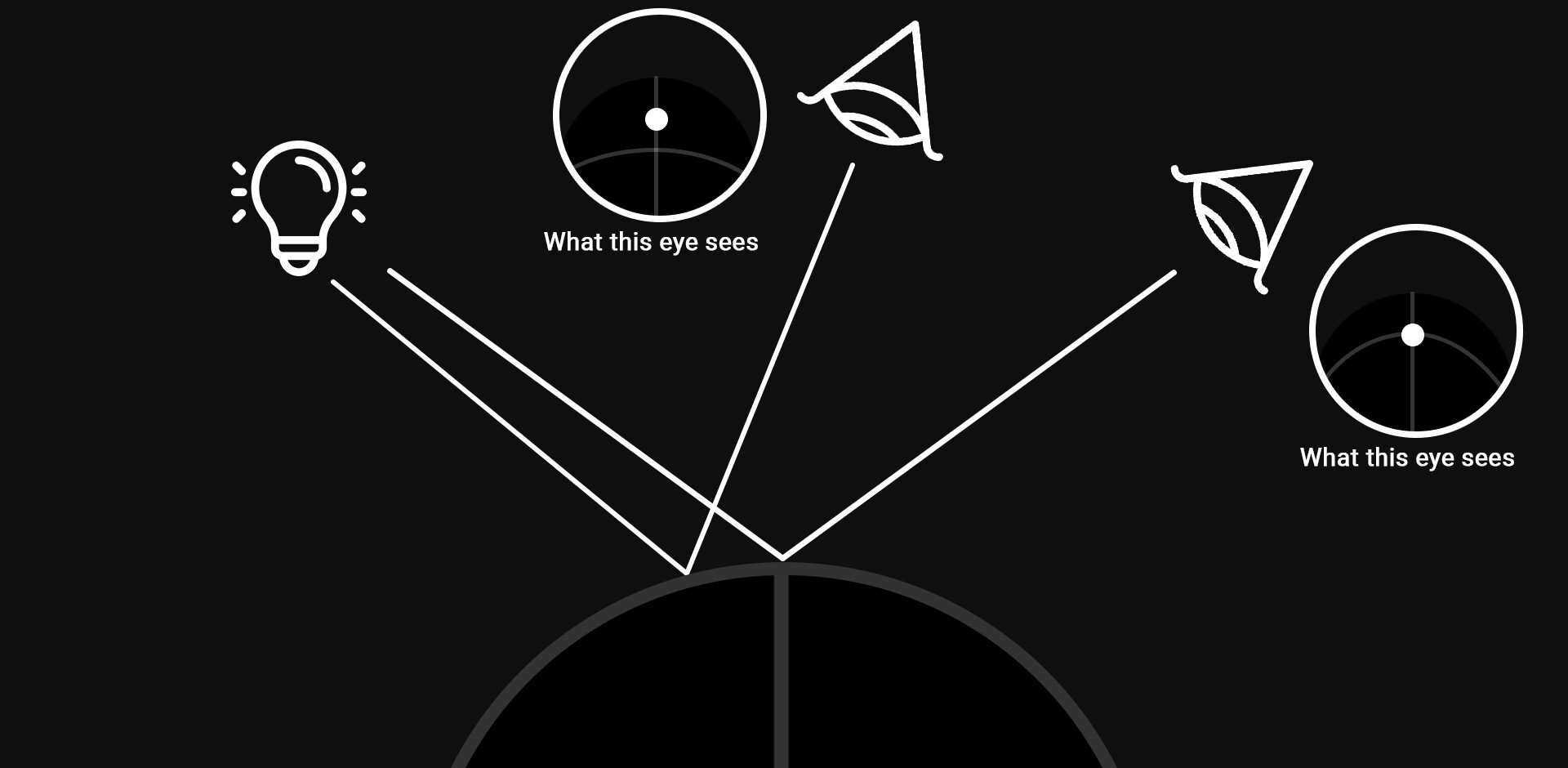
  • Specular reflection: light can bounce back in a perfect angle and go towards the viewer, creating a specular reflection. Since the light interacts very briefly with the object, specular reflections usually keep the color of the light source, ignoring the color of the object.

Transmission

If the ray of light can go through the object, we will get some effects such as: 

  • Transparency: the ray of light goes through the object and it’s direction is unchanged.This is what happens in real life with most gasses.
  • Translucency: because light can travel at different speeds depending on the medium it’s passing through, when it passes through many different mediums with different properties, it appears to bend. This is what happens in real life with water, glass, etc…
    The relative speed at which light travels through a material is called the index of refraction of that material. Refraction can also cause other effects, such as rainbows, caustics or prisms.
  • Subsurface Scattering: a translucent object might receive light, which interacts with the object intensely (getting colored) and bounces back out of the object making the object look emissive, specially on thin surfaces where it is more likely for light to go through the object.

Absorption 

Light is energy, and when it hits an object its energy can be absorbed by the object, which heats up as a result. In fact, objects can absorb not only visible, but also other kinds of invisible light (ultraviolet, infrared…). Absorbed light is invisible, and doesn't affect our images.

Direct and indirect lighting

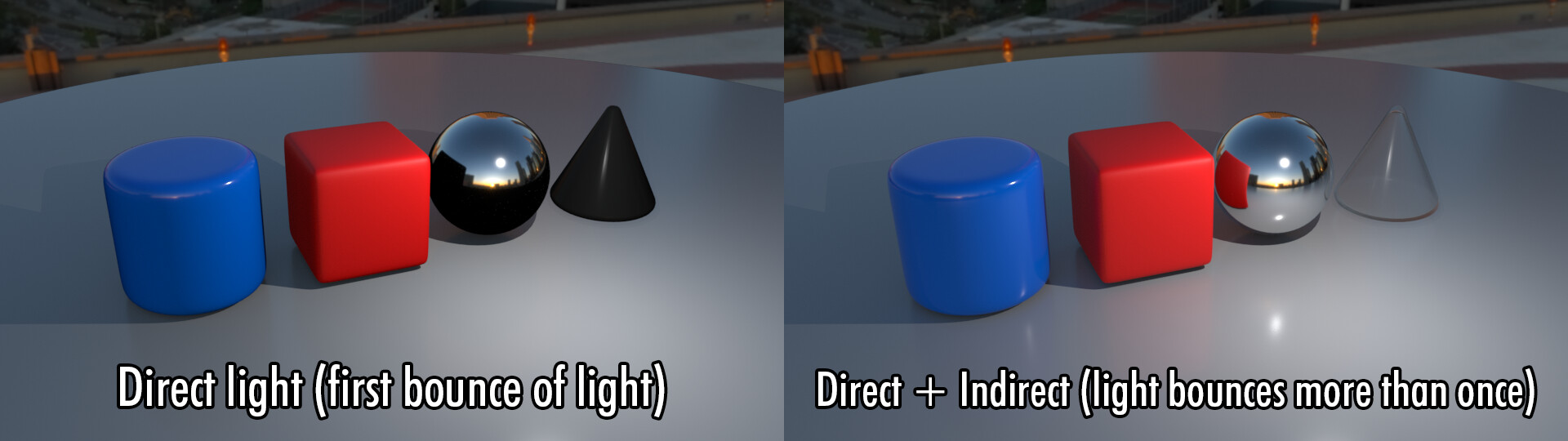
When we consider only the first bounce of light, we are only considered direct lighting: light that bounces from an object and straight into the camera. However, light bounces around everywhere (and it bounces even more if we consider that it’s not exactly a particle) and many times

This is why we also have to include extra light in our scenes that fills the very dark parts of the shadows, representing these extra rays of light bouncing everywhere. This extra light is called indirect light, ambient light or global illumination. 

Indirect light is very weak: if a single bounce usually results in 18% of the original light bounced, 2 bounces would result in 3.24% of the original light intensity. Nevertheless, it is very noticeable because a bit of light in a completely dark surface is very noticeable.

Indirect lighting is quite hard to get right, because we have to consider the entire scene, how light bounces between objects, how color is being added to each object, etc…Some of the most common approaches include: 

  • Calculate it accurately, tracking how light should bounce around the scene, and combine it with the direct lighting. This process is obviously the most accurate, but it is very slow in CGI and very hard to get right in illustration:
  • Add a fill/ambient color: instead of leaving the shadowed parts of our scene completely dark, we use a base color that fills them (usually the sky color, or the color of the largest light source), to represent how the environment light is filling these dark areas with its bouncing indirect light.
  • Use the base color of each object: frequently used in illustration. Instead of starting with a black canvas and adding the light from each source, we usually start from base colors and add shading on top of them. This way, shade areas will keep some of the color that indirect lighting would light, allowing us to see the base color of the surfaces.If we start from a base color, and darken it for shadow areas while keeping the base color perceivable, we are recreating indirect light reaching those shadow areas.
    Warning: some people also refer to the base color of the object as the albedo color or diffuse color. Technically, diffuse color should include shading (light+shadow) and albedo color should be the flat color (without lights nor shadows), but these terms are commonly used without distinction.
  • Add a fill light: in CG, we can add a fill light (sometimes it's the same as an ambient color), which is a light that illumates all objects from all angles.A similar approach would be to capture the environment as a 360º image and use it as a fill light, to fill the shadows with the color of the environment. For instance, we can use a Skylight in Unreal Engine to capture the scene and use it to fill dark areas, simulating indirect lighting in real time.

The story so far

So, how can we form an image using what we have discussed so far? Let’s take a look:

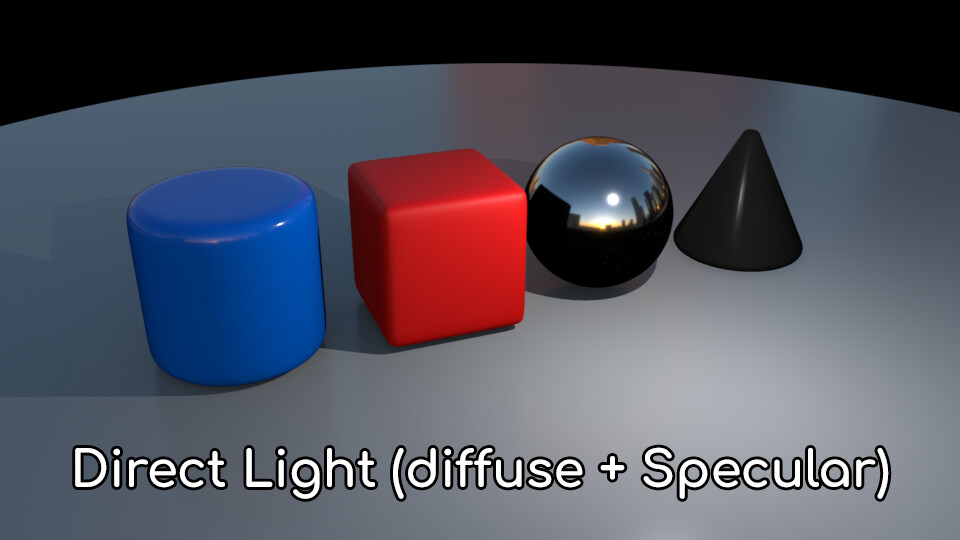
Starting from complete darkness, we add light sources to our environment and calculate the direct lighting: light comes out of the light sources, bounces once on the environment and goes into the camera. As we have seen, there are diffuse and specular bounces:

This is nice, but light in real life bounces more than once: we need to incorporate these extra bounces (indirect light) into our scene:

And aside from bounces, light can also go through objects (transmission)

When we combine everything together, we have our render:

So, what we need to represent light is the sum of direct lighting (diffuse and specular), transmission, and indirect lighting. We could also add some extra effects such as caustics, bloom, motion blur, etc… but those are the basic pieces that we should keep in mind.

Depending in our media, we approach this in different ways: 

  • In non-realtime cgi, we throw rays from the light sources into the scene (ray tracing), track how they bounce, and add them together to generate the image.
  • In real time cgi, we generate temporary images of the scene with the information we need (color, roughness, depth…) and use optimized math formulas that calculate the color of each pixel using the scene settings and these temporary images.
  • In illustration, we usually start with the diffuse color, because it is usually the most important component; add shadows (so we get the direct diffuse reflections and a base for indirect lighting), add specular reflections on top of all, and finally tweak everything until we get the desired result.


Light has to get somewhere

When light hits an object, the incident light is either reflected, transmitted (goes through the object) or absorbed; and it is conserved during this process: incident light is equal to the sum of reflected, transmitted and absorbed light. In real life, there are other processes that can affect light, but they are negligible for rendering.

Because absorption is invisible, we can reduce the amount of light that is bounced from the object, and assume that the rest is absorbed. However, we can’t increase it because we would be generating light from nothing. This is relevant as old lighting models in cgi did not respect this law, and we could have objects reflecting more light than they should.

Reflections in detail

When light interacts with an opaque object, some part of it gets absorbed by the object (which gets hot as a result), and the rest of it bounces. When that bounced light reaches a camera or our eyes, we can see the object. 

The percentage of light that gets reflected by a material is called the Albedo, and it ranges widely between different materials.
If we had a material with an albedo of 100, it would reflect all light. It would not only be a perfect mirror, but it would also be very cold as sunlight just wouldn’t heat it directly.
Usually, the highest albedo is found on new clear snow at about 80. The main implication of this is that we should avoid using pure white as a color, because a surface with 100% pure white would actually have to be actively emitting light, not just reflecting it. Of course there are other factors to consider (white balance, exposure, eye adaptation …) but as a general rule of thumb it's a good idea to avoid using pure white and pure black. 

There are two main types of light reflection: specular and diffuse reflection. The sum of these reflections gives us the albedo.

Non-metallic materials (dielectric) reflect between 2 and 5% (4% being the average) of light in a specular way, and a wider range of light: 0.5-75% in a diffuse way (14% on average). The sum of reflected light (specular + diffuse) is the albedo value (18% on average). The rest gets absorbed by the material as heat.

Metals are weird, they reflect 50-99% of light in a specular way, and don’t have diffuse reflections.


Diffuse bounces in detail

As we have seen, in a diffuse bounce the ray of light can penetrate slightly the surface of the object, interacting with it and releasing back out in a random direction. 

Diffuse bounces carry the color of the object.
In a diffuse bounce, light penetrates the outermost layers of the object, the object absorbs part of the light (heating as a result) and releases the light in all directions; which is now colored as it got partially absorbed by the object.

Diffuse bounces throw light in all directions, everywhere.
This means that a specific point of the object will have the same light intensity no matter from where we look at it.
The point of the object that is closest to the light will have the most brightness, and the less exposed points will be dark. This is a very important distinction from the specular bounces, where the viewing angle does matter.

Since light gets scattered everywhere with diffuse bounces, the surface roughness is irrelevant for diffuse bounces: we can polish a red surface and make its surface smoother, but it will always be red.

Specular bounces in detail

In my opinion, specular bounces are easier to understand because it’s what comes to our head when we think of a bounce. 

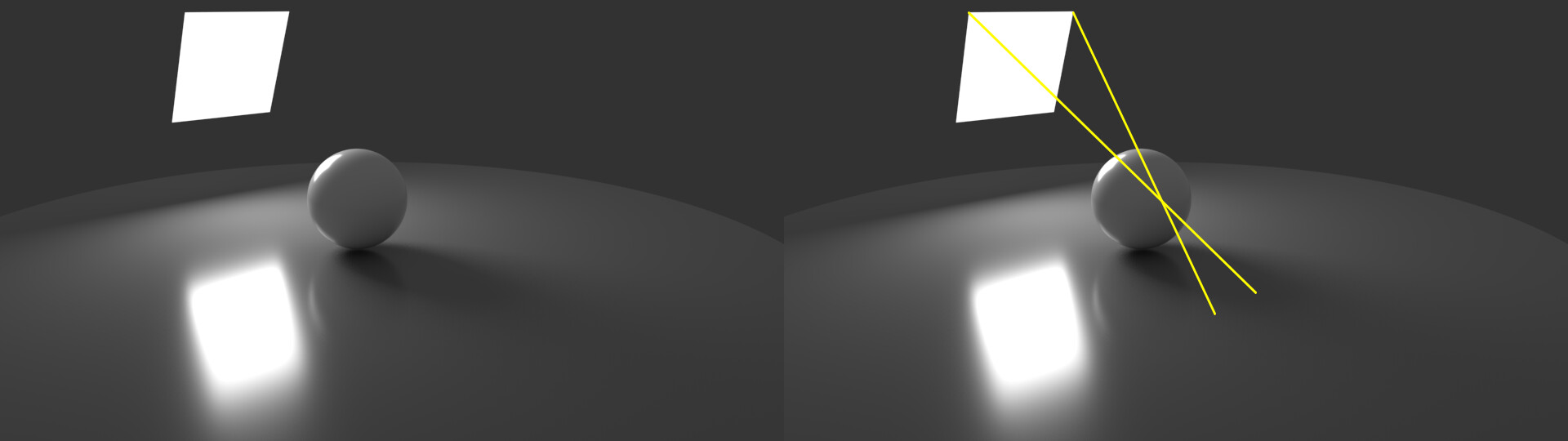
The light bounces back from the object in a symmetrical angle and goes towards the viewer, creating a specular reflection, like a ball thrown towards a wall.

Specular reflections keep the color of light
Since the light interacts very briefly with the object, specular reflections keep the color of the light source, ignoring the color of the object. This is the white highlight that we see on a smooth plastic surface: it doesn’t matter what the color of the plastic is, this reflection is always the color of the light (usually white) because that’s the color of the light source, and the specular highlight doesn’t modify it.

These objects have different colors (set by the diffuse bounces), but their specular highlight is the color of the light (white).

Specular highlights
In a specular reflection, the entire environment is being reflected, but light sources are much brighter than the environment, so a lot of times these light sources are the only specular reflection that we notice. These reflected light sources are usually named specular highlights.

This traffic light projects a colored specular reflection on the ground. The entire environment is being reflected, but we mostly see the light because it is a much stronger light sources than the rest of the environment.

Specular reflections are view dependent.
This kind of reflection is dependent on the viewer angle: we only see the light that is perpendicular to the surface we are looking at. If we change the viewing angle, the highlight will “move (relative to the object)”. The intensity of the reflection will be greater as the viewing angle gets more parallel to the surface.

The specular reflection on this bird figurine seems to be placed on the eye in the first picture, while in the second image seems to be placed on the spine.

Specular reflections look different depending on surface roughness.
If the surface is perfectly smooth, the reflected light will be very similar to the source (like a mirror), and if it's rough, the bounced image will be blurry. Instead of having to model microscopic details to represent these surfaces, computer shaders usually have a way of simulating those details, usually a roughness or smoothness value that we can adjust using a value or a texture.

Notice how all the spheres are always red: the color of the object depends on diffuse reflections, which are independent from surface roughness (no matter how much we polish a red ball, it is still red). Only specular reflections are affected by surface roughness.

The specular highlight of a smooth surface looks brighter than the specular highlight of a rough surface because the rough surface scatters light everywhere while the smooth surface directs it towards the viewer. The amount of reflected light is the same, the rough surface simply scatters it, making the highlight larger and dimmer.

Fresnel effect.
Now, let’s imagine that we have a rock, and a pool full of water. Let’s throw the rock directly into the water, simply letting it fall down from a great height. Will it bounce?
Of course not. It simply goes through the water and falls to the sea floor. But what if we throw it at an angle? At a 45º angle the rock will probably still fall down, but at very low angles, the rock bounces (skipping stones). At some angles, where the movement direction of the rock is almost horizontal; it's more likely for the rock to bounce than it is to go through the surface.
The same thing happens with light when it comes to specular bounces. 

If we throw a ray of light perpendicular to a surface, it is more likely to be absorbed by the surface than it is to bounce. However, if we throw it almost parallel to the surface, it will be more likely to bounce and generate a specular bounce.

This effect is called the fresnel effect, and it basically means that surfaces are more specular when looked at extreme angles. Because of this, specularity is calculated at a perpendicular viewing angle, called f0; instead of any angle.

One of the most clear examples of this is water: when we look at a water surface straight down, it is transparent and we can see what's inside the water; and when we look at it horizontally (looking at sea at the horizon), the specular bounces are much more likely, and the water reflects light as a mirror.

In this image, we can see though the water when looking at the nearby rocks, but the far away zones look more reflective, because water has a fresnel effect: it is much more specular when looked at from a parallel angle, and less specular when seen from a perpendicular angle.

Metals
Metallic objects are weird. Metals are very, very dense. So dense that it’s pretty much impossible for a metal in the real world to become transparent (gold leaves can be a hundred atoms wide and still be opaque).

When light hits a metal surface, most of it bounces off: while most materials have a lot of diffuse reflections and a little bit of specular reflections, metals have a lot of specular reflections and no diffuse reflections. Light simply cannot get inside the metal surface to interact with the metal atoms, get partially absorbed and get out in a diffuse bounce. Instead, it just bounces off. Around 50-99.8% of light gets reflected specularly, and the rest gets absorbed.

What color is a mirror? It's hard to tell because mirrors are made of metals, and they reflect most of the light in a specular way.
Some metals can also add a little bit of color to the reflected light, making it look like they have a color (gold, copper, etc...), but in reality they are just modifying the color of reflected light: specular highlights keep the color of the light in non-metallic surfaces, but can be altered in metallic surfaces.

In the case of metallic surfaces, since most of its surface is reflecting the environment; their look can vary immensely depending on the environment and the viewing angle.
As a result, they are hard to draw, and if we wanted to render them correctly in 3D we would have to “render again” the entire scene. A common solution is to make these metal parts very rough, in order to make the reflection quite blurry and avoid distinguishable details that might not fit with every environment.


Transmission

When a light ray reaches an object, it can go through it. This process has many names. I've decided to use the term transmission, which is the one used in ray tracing CGI.
Keep in mind that light has to be conserved: if a transparent object has reflections, or if it's colored, light has to be dimmer when it goes through it. For instance, when a surface gets wet, it might have a stronger specular reflection because of the water on top of it. The light that is getting reflected specularly doesn’t reach the object and doesn’t contribute to the diffuse reflections, making the object look darker.

Transmission can take many forms: 

Translucency
When light passes through many different mediums with different properties, it appears to bend. This is what happens in real life with water, glass, etc…
Light can travel at different speeds depending on the medium it’s passing through. You might remember that the speed of light is  about 299 792 458 m/s, but that is measured in a vacuum. While it is going through a medium it might go slower* depending on the refraction index of that medium.

*Not 100% true, but let's skip relativity theory.

In some mediums, light goes faster or slower than in the air, and that can cause incident light rays to bend when going through the medium, in a phenomenon called refraction.

Heavily compressed air is more dense than regular air, and light goes through it slower. This is why explosions can create visual shockwaves: air is much denser here, and we get refraction effects between regular air and heavily compressed air.

A completely translucent object is invisible, however it can still be perceived because it bends light, changing how objects behind it are seen.
Refraction can also cause other related effects, such as rainbows, prisms, iridescence…


Transparency
The ray of light goes through the object and it’s direction is unchanged.This is what happens in real life with most gasses. Visually, a completely transparent object is invisible. However, a partially transparent object can be seen.

A partially transparent object will tint the objects behind it with its diffuse color. This type of transmission is mostly used as a cheap way of translucency in CGI: in real life, almost all objects have a refraction index distinct from 1 (air), and will bend light in some way. 

Subsurface Scattering
Subsurface Scattering is a mix between diffuse reflection and translucency: light can penetrate an object, start reflecting inside the object with diffuse bounces, and get out the other side of the object, specially on thin surfaces where it is more likely for light to go through the object.

Subsurface scattering is colored, with a color that is a mix between the diffuse color of the object (because of the light rays diffusely scattered) and the color of the light (because of the light rays transmitted through the object). It can make surfaces look emissive when looked from the shadowed side, and it is sometimes faked with emissive materials.

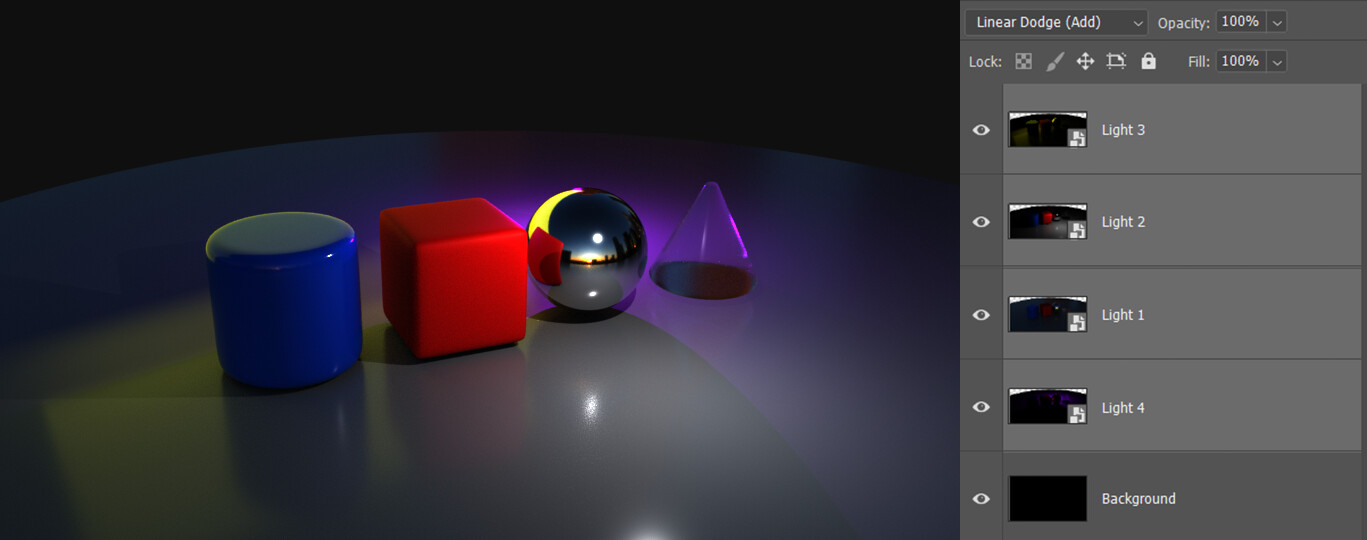
Combining light sources

What if we have different light sources? How do they add up? 

If we take a photograph with 4 different light sources turned on, and 4 photographs (or renders) with each individual light turned on and the rest off, can we simply add the individual photographs to generate the same result?

4 light sources turned on


Each light source turned on individually

Yes:

If we compare the generated image with the one with all lights turned on, we can see that they are basically the same. This means that we can work on each light source separately and add them; light sources can be added linearly.

Well, kinda.
While the light from different light sources can be added, keep in mind that our eyes adjust to the amount of light that we are seeing, and past a certain threshold our eyes readapt, in a similar way to how we stop perceiving a strong smell after a while so that we can focus on other smells (also, gamma correction and other effects could interfere).
This is yet another reason why you should avoid 100% white: our eyes would adapt to avoid losing the information that we can’t see because our light receptors are flooded.

Shadows

In CGI, we usually start with a black color for the entire scene, and start adding lights. However, when drawing we usually start with the diffuse color, and add both lights and shadows. 

A shadow is the absence of light. Depending on their appearance, shadows can be split into three groups: 

  • Form shadows: shadows created on the surface of objects simply because they are less exposed to the light. Form shadows come from the lack of diffuse reflections: the parts of the object that are exposed to the light will reflect it; but the parts that are less exposed (facing away from the light) will not, and they will look darker.
    These shadows are usually smooth and subtle, and give us a lot of information about the volume of the object.
  • Cast shadows: shadows created when an object or a part of an object gets between a source of light and another object. Unlike form shadows, that affect only the same object, cast shadows can affect nearby objects, occluding them from the light source.
    These shadows are usually harder and less subtle than form shadows, and they gives us information about the location of the objects in our scene.
  • Ambient Occlusion: when an object gets close to another, light is less likely to reach the space in between objects, and that space looks darker. We can fake this effect by darkening these zones, usually in real time environments, as a cheap way of mimicking light bouncing around the scene which is a very expensive effect. In reality, Ambient Occlusion is a mix of cast and form shadows, but we separate it in order to have more creative control over our scenes.

Much like multiple light sources can be combined together, shadows from multiple light sources can overlap and become darker.
However, a single source of light cannot generate overlapping shadows (a mistake we sometimes make when drawing light). Each light source generates its own set of shadows. A form shadow and a cast shadow formed by the same light wouldn’t overlap: they would combine.


Shadows are not always dark

Light bounces everywhere (thanks to indirect lighting). Some of this light will likely reach shadowed areas and bounce back to the viewer, allowing us to see the color of areas in shade.
The brightness of shadowed areas will depend on how much indirect light we have in our scene: in the desert, there is only on light source and no buildings, trees or other objects that might bounce light and fill those shadows with color: we have very little indirect lighting (we will always have some), and shadows look dark and have very little color. 

The shadow of this girl is very dark, because there is only one light source (sun), and no surfaces where sunlight can bounce to fill it.

On the other hand, during an overcast (cloudy) day, clouds bounce light everywhere, shadows get filled with the bouncing light and we can even get to a point where shadows disappear.

This woman has almost no shadow: buildings, clouds and rain are reflecting light everywhere.

When we have separate light sources casting shadows, these shadows can overlap. In real life, we mostly have one light source (the sun), so having several overlapping shadows from several light sources looks unnatural, and we usually try to avoid them or we try to soften those shadows.

These shadows overlap because we have multiple light sources, which looks unnatural.

In order to avoid this effect, lighting experts use larger sources of light that form softer shadows (such as windows or large lights), or use deflectors that scatter light in all directions.


Shadows can have smooth or hard edges.
Cast shadows can have different degrees of border smoothness. I used to think that this depends on the distance between the shadow and the shadow-casting object, but I was slightly off.

In the case of a directional light, such as the sun; all light rays are parallel (the sun is so far away from the Earth that when light rays reach us they are almost parallel). This generates hard shadows: 

However, when we have a light source that is closer to the object, shadows appear smoother.
Once we get closer to the object, light rays approach the object in different angles, smoothing out the shadows.The furthest away from the light source, the smoother these shadows will get, because light rays at the edges have traveled a longer distance and since they are traveling at slightly different angles they separate more.


For reference, the light rays from the sun are almost completely parallel but they do have a small variance of 1-1,5º so we should be able to see soft shadows from direct sunlight, especially at long distances from the shadow casting object.

Increasing the size of the light source also softens shadows.

You might think that if sunlight rays are mostly parallel, a window would let light enter a room also as parallel rays. However, we also have to consider indirect light going through the window from all directions, as well as diffraction.

Wrap up

So, in this tutorial we took a look at the main light effects that we should keep in mind when rendering a scene: emission, direct and indirect light bounces (both specular and diffuse), transmission and absorption.
We also took a look at some related effects, such as metallic objets, refraction, combining several light sources and shadows.

Now that we have in mind the different parts that we need to render a scene, I would like to take a closer look at how we approach these different parts from a non-real time approach (using ray tracing), a real time approach (using rasterization) and an illustration approach (taking a look at the main shading techniques used in illustration).

This tutorial took me much more time than I thought, but I also learned a lot more than expected while researching it. I'm not sure how much time I'll need to finish each part, so wish me luck!

Thank you for your time, and I hope it was useful. If you want to learn more about lighting, I strongly reccomend taking a look at Light for visual artists, by Richard Rot.

This article is also available to download as a PDF file.
This is normal 5: normal map workflows

Tutorial / 29 October 2020

There are many ways to create and use normal maps. Let's take a look at some of the ways I know about making normal maps. 

There is not a correct solution for each situation, in fact I use several techniques depending on what I'm working on, how much time I have, the target performance, etc... and most of the time they are interchangeable. I will try to explain que advantages and disadvantages of each method, but in a lot of cases they will be very similar.

Completely smooth lowpoly 

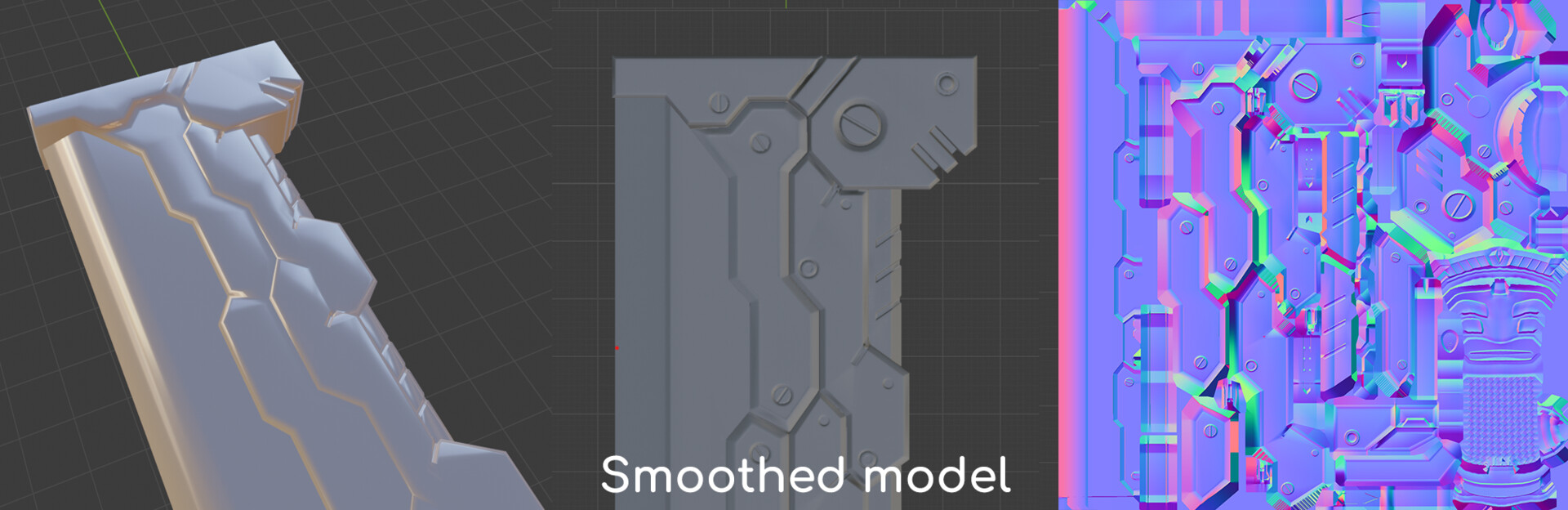
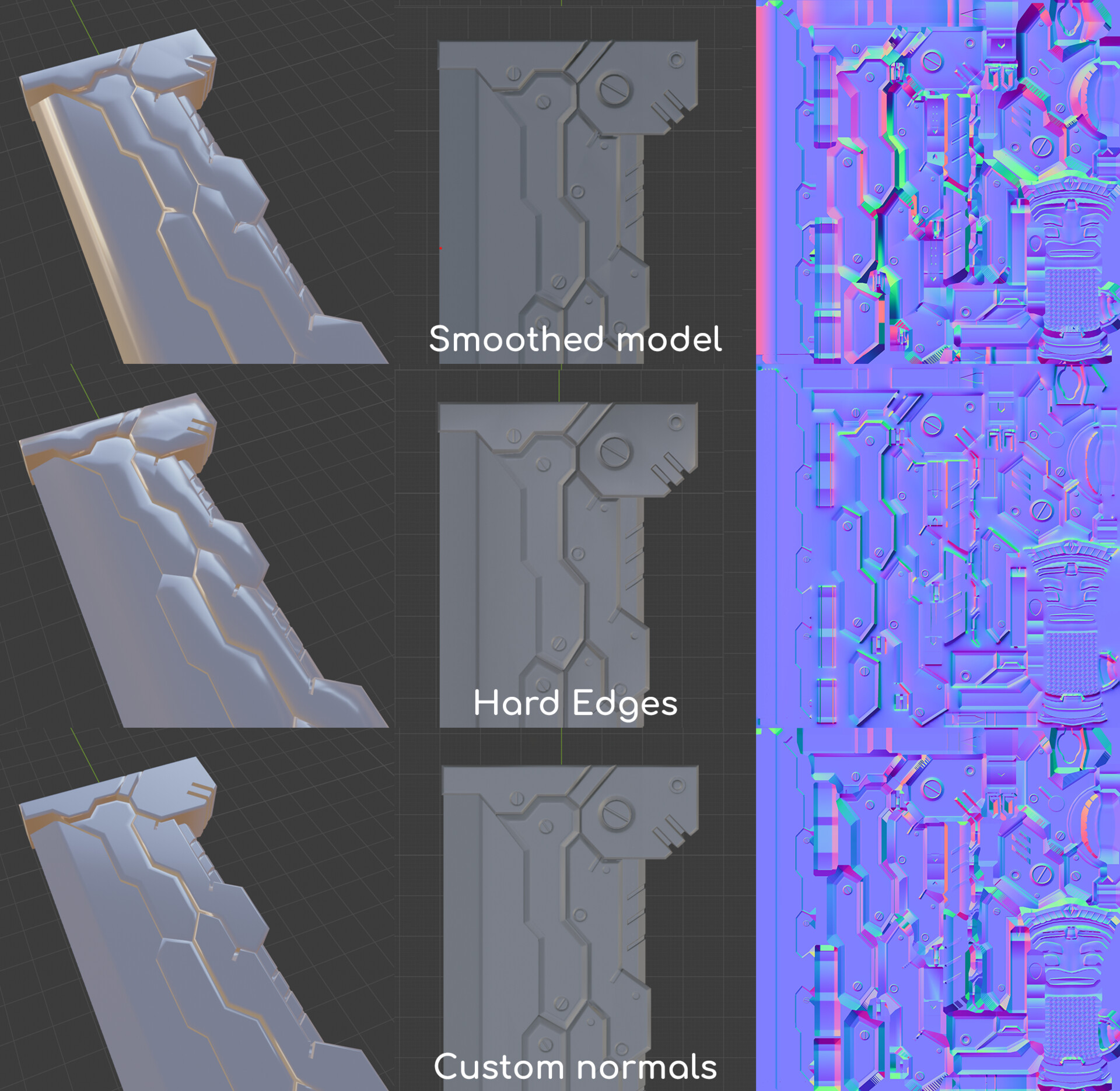
With this method, all of our lowpoly normals will be averaged: all edges are set to smooth, or we have a single smoothing group.
This means that the normal map has to do all the work. Your lowpoly will usually look very different from the highpoly until we apply the normal map. 

The main advantage of this method is how easy it is for artists: you don't have to worry about separating UV islands, setting up the smoothing of your model or tweak the normals of your lowpoly. You make your lowpoly and highpoly, smooth the lowpoly and hit the bake button. 

However, it has some drawbacks: 

  • It's important that the tangent space is set up correctly. Since we are relying a lot on the normal map, minor changes in how it is set up will be specially noticeable with this method. In general, make sure that your 3d modeling, baking and render programs all use Mikkts as their tangent space, and that all models are exported and imported accordingly. 
  • Because the normal map has to bend the normals a lot, your normal map will likely be more colorful and have a lot of gradients. This means that your normal map file size will be slightly larger, and it is more likely to have compression artifacts.
    To compensate for this, it is common to increase the resolution of the normal map when using this method, or reducing the normal map compression. For PC games, this is not a big performance hit, but for mobile games it can be noticeable if you have a lot of normal maps. 
  • Removing the normal map from your model will usually make it look bad (specially if it has a lot of sharp edges).
  • Adding normal map detail to your textures (ie in Photoshop) can be troublesome.
  • The lowpoly normals are more likely to bend and misalign with the highpoly surface, and skewed details are more likely to appear.

This is the method I prefer when I'm working on organic models, because they usually look better when 100% smooth, and the normal map doesn't have a lot of work to do (because the surface of the organic model is usually smooth and similar to the smoothed lowpoly).


Models with hard edges (with smoothing groups/hard edges set up)

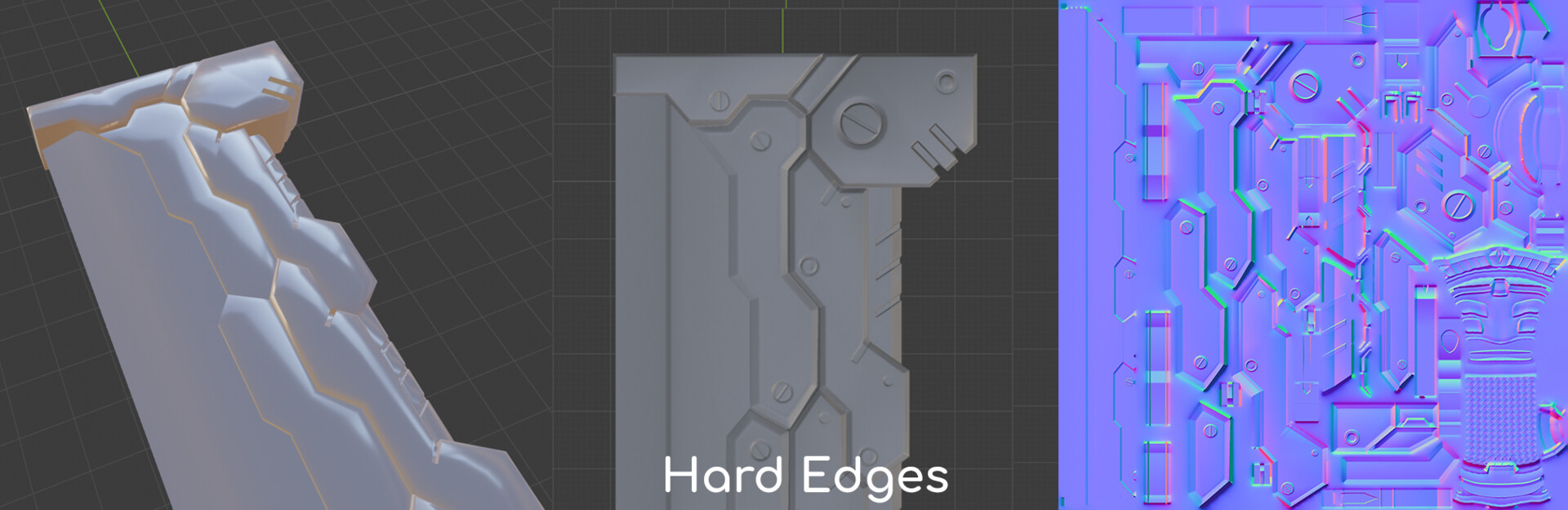
With this method, we set some of our vertex normals to be split, by setting up smoothing groups or selecting hard edges. Some peoply like to set this up using an angle to determine if an edge is soft or hard (common angles are 30, 45 and 60º), but I prefer to set them up by hand (while also thinking about where to put my UV seams). 

Remember that wherever you have a hard edge, your UVs should be split to avoid visible lines along your edges in your normal map.

Drawbacks: 
  • In general, it requires a bit more work than the first method.
  • You should split the UVs wherever you have hard edges to avoid these visible lines along your edges, which can make working with certain UV islands more difficult (i.e: hand painting a part of your model that has separated UVs can generate unwanted seams). Luckily, programs such as Substance Painter, Mari or 3D Coat have solutions for this. 
  • Setting up hard edges and splitting UVs will slightly increase your vertex count, however this is usually negligible.
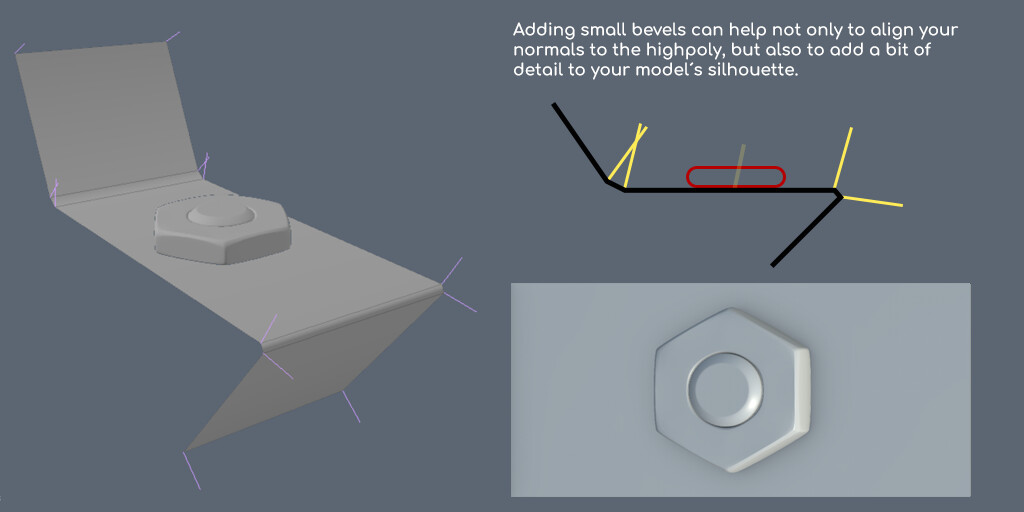
With this method, we don't rely as much on the normal map to control the shading of our model, so we can for instance remove the normal map when the object is far away and it will still look decent (the example above is not a great one, but this can work for other models); or we can use smaller or more compressed normal maps. 

On flat surfaces, we can use hard edges to align the lowpoly normals with the hard surface. If the lowpoly and highpoly surfaces are perfectly aligned (ie: they are both flat), the normal map in this area will be flat, which makes adding and removing normal map details to the texture effortless
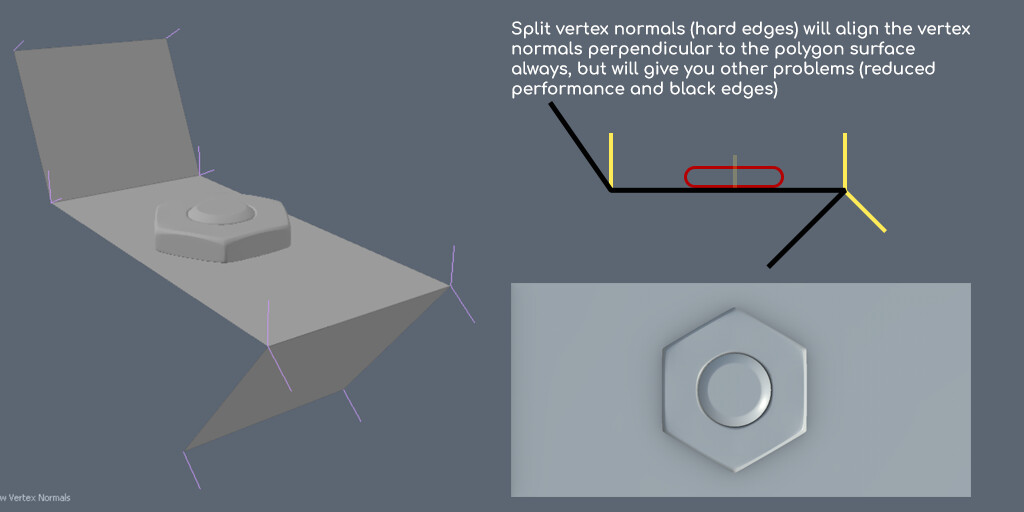
Personally, I use this method the most (because I feel I have more control and options in case something looks bad); and specially when I'm working on a tight budget. Lately, I have been avoiding it on certain hard surface assets, because they would need a lot of hard edges, which means a lot of UV islands and they get harder to work with.
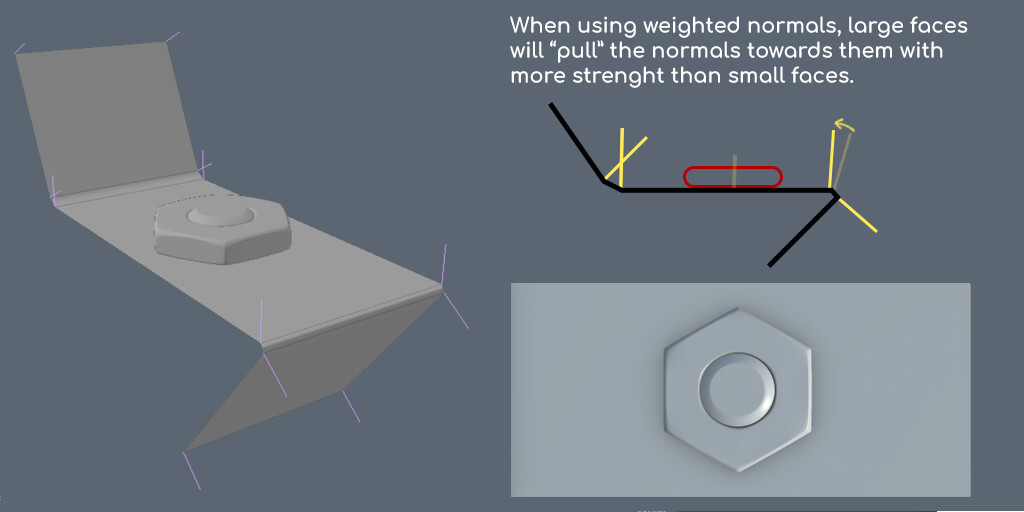

Custom normals workflow (& midpoly approach)

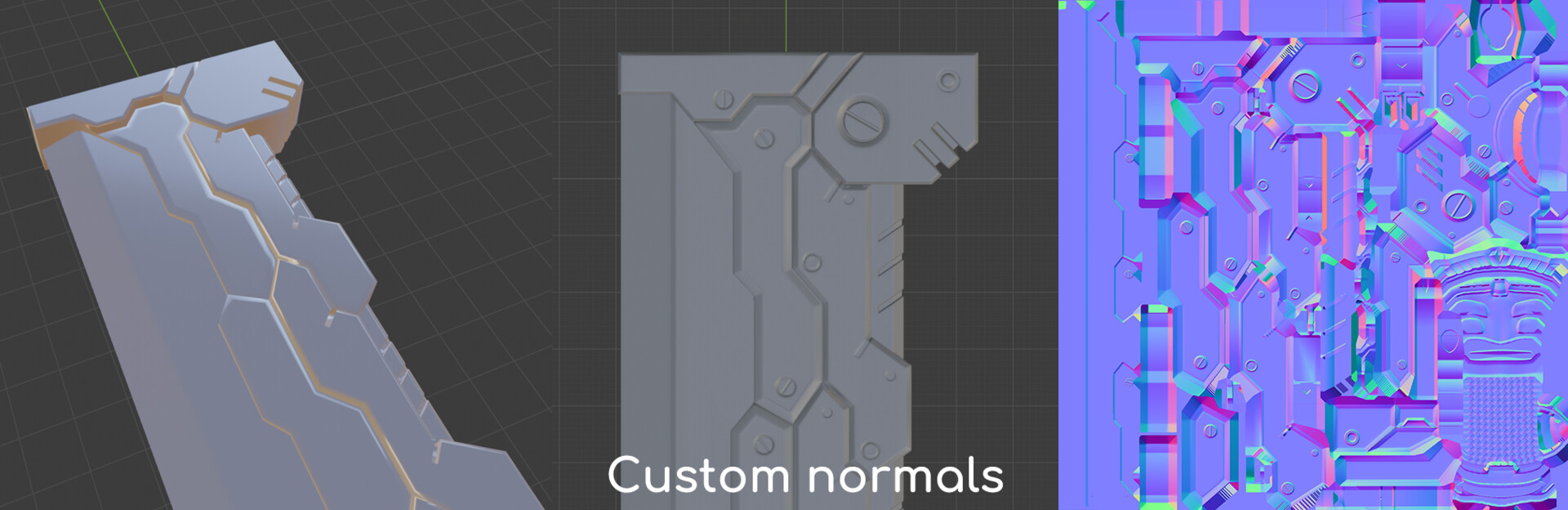
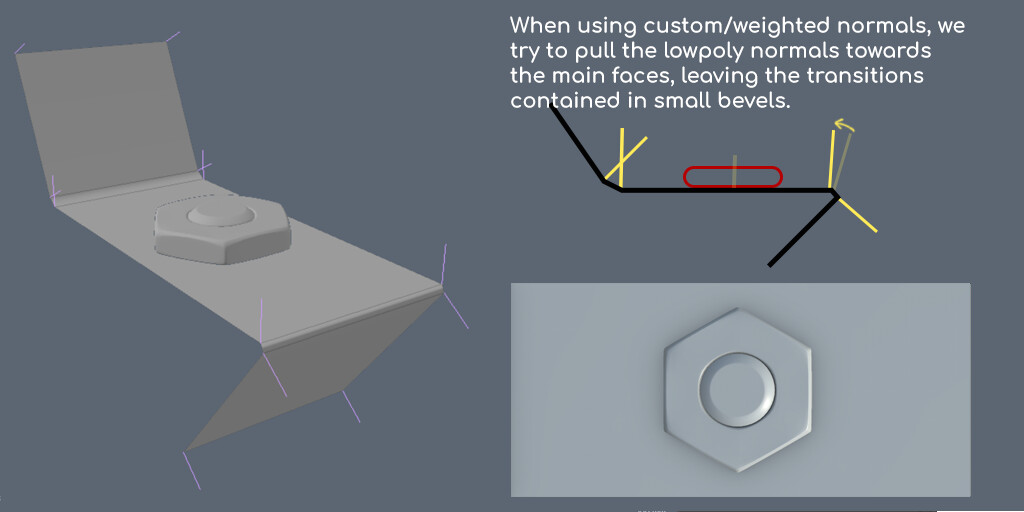
There are some ways to directly modify the normals of your lowpoly, but not all 3D programs have this option and they differ quite a bit. The most common way is to use weighted normals, so the program automatically reorients the normals towards the larger faces. Another way of modifying the normals is to select a face and align its vertice's normals with the face normal, so they all point in the direction of the face.
It is important that we export, bake and import models with custom normals correctly. Most 3D engines will accept models with custom normals, however it is an option that is usually checked out by default.


This method has spawned a new wave of modelling called midpoly modelling. This is more a modeling approach than a texturing one. The general idea is that, instead of generating our details using normal maps, we generate them directly modifying the normals of our lowpoly.
When modeling hard surface models, we want to have large smooth surfaces with a smooth transition in between them (instead of a hard edge, which looks less realistic). We can accomplish a similar result using custom normals:  
First, we add a bevel to the edge that is placed in the transition. Then, we modify the normals of the resulting vertices, so they point towards the main faces. This way, the normals of the lowpoly will point towards the larger faces, and the transition in the normal directions will be limited to the beveled edge. 

Once we have our midpoly set up, we can combine it with normal maps to easily add details in the flat surfaces. In the beveled zones, normals stretch a lot, so working with normal maps in these zones is tricky. 

Here's a side by side comparison of the three methods described: 


Other techniques and experiments

There are a few other techniques that we can use to create/use normal maps. I'm not going to delve too deep into them, because they are not as widely used nowadays than the previous ones and I'm not too familiar with them. 

  • Normal mapped pixel art: we can add normal information to pixel art sprites and light them, to give the impression of volume. Basically, we tell each pixel where to point, so that when a light hits it, it reacts differently than pixels facing other directions.
    I have found three ways of doing this: 
    • Using a special program that roughly translates color information into normal orientations, such as this one. 
    • Creating greyscale versions of the sprite lit from different directions and using them to compose a normal map. As we saw in this is normal part 2, we can consider a normal map a combination of 3 images: the model lit from the left stored in the red channel, above/below stored in the green channel, and the model lit from the front stored in the blue channel.
      So, we can draw our sprite lit from above/below, left and front; and compose a normal map using these images as channels of our normal map, as seen with this program. 
    • Creating a height map and using a program to convert its information into normal map: similar to the previous technique, but much faster since we only have to create one additional texture instead of three.
  • Hand drawn normal maps: specially tailored to the kind of person that sees Dark Souls and thinks: this is too easy, I'm going to do it blindfolded. These techniques are usually too slow to actually use in a production, and most of the time I would suggest just sculpting from a plane in zbrush and export a normal map. Here are some techniques:
    • Creating a height map and using a special program to convert its information into normal map (just like with the pixel art example). Probably the fastest and more convenient way of creating a normal map from hand drawing.
    • From a sphere reference: Using a normal map sphere as a color picker, we can draw matching the angle of the surface to the corresponding color on the sphere.
    • Using special brushes: Krita has a special brush that can convert the pen tilt to normal map information.
  • Composing normal maps using textures: Using a library of normal map textures, we can combine them to add details to our normal maps.
    These details can be combined together. Keep in mind that blending normal maps is not as straightforward as one might think.
  • Image filters:some programs can approximate normal map information using diffuse/albedo/basecolor maps. These are usually innaccurate, but they might work fine for background/small assets.
  • Matcaps: Matcaps are simplified shaders, that determine the color of pixels on screen based on the normal direction of the geometry. We can apply a normal map matcap to any geometry, and render a still image to generate normal map textures quickly. This can be easily done with Zbrush to generate tiling textures. 
  • Detail normal maps: in some cases, we can complement a normal map generated from a highpoly with extra details (i.e: we can combine a head sculpt normal map with skin pores textures), and we can load this extra normal map only at certain distances to reduce memory usage while keeping details at close ranges.

Part 1: What normal maps are and how they work.

Part 2: Baking normal maps.

Part 3: Types of normal maps. 

Part 4: Normal map troubleshooting guide. 

PDF file (Gumroad) / PDF file (Artstation)

This is normal 4: Normal map troubleshooting

Tutorial / 22 December 2019

This is the fourth part of a normal map tutorial I've been working on, but it is independent from the rest and can be seen as a standalone.

Here's a compilation of normal map problems I have seen throught the years, and some of the solutions I know to fix them.

Problem: there are "seams" at the edges of my model

This happens when you have connected faces in your UVs that are separated by a hard edge. Each face will compete to modify the color of the pixels at the edge, and most of the time there will be a seam which is very noticeable when it affects the normals of our models, generating these strange lines.

Solution: if you split the UV islands so they are no longer connected in the UV space, the colors of each island will remain separated, as they no longer compete for the UV space.

The rule of thumb is very simple: whenever you have a hard edge on your model, separate the faces connected by it in your UVs.


Problem: my normal map looks VERY wrong, especially from some angles

This problem can appear for multiple reasons, let's discuss some of them:

  • You are using the wrong tangent space: The normals on your lowpoly, that we are trying to bend using a normal map, can be calculated differently in the baking program from the program you are using to render the model. If these calculation differ, your normal map can look very strange, specially from some angles.

    Alternatively, it is possible that you are using a world space normal map as a tangent space normal map. In this case, make sure you are baking a tangent space normal map and using it as such.
    Solution: always try to use the Mikk tangent space basis to calculate your normal maps. This is a standarized way of calculating normals, that was made to avoid these kind of problems. If your normal map baking program can't use Mikk, try using a program such as handplane to switch between one tangent space and another.
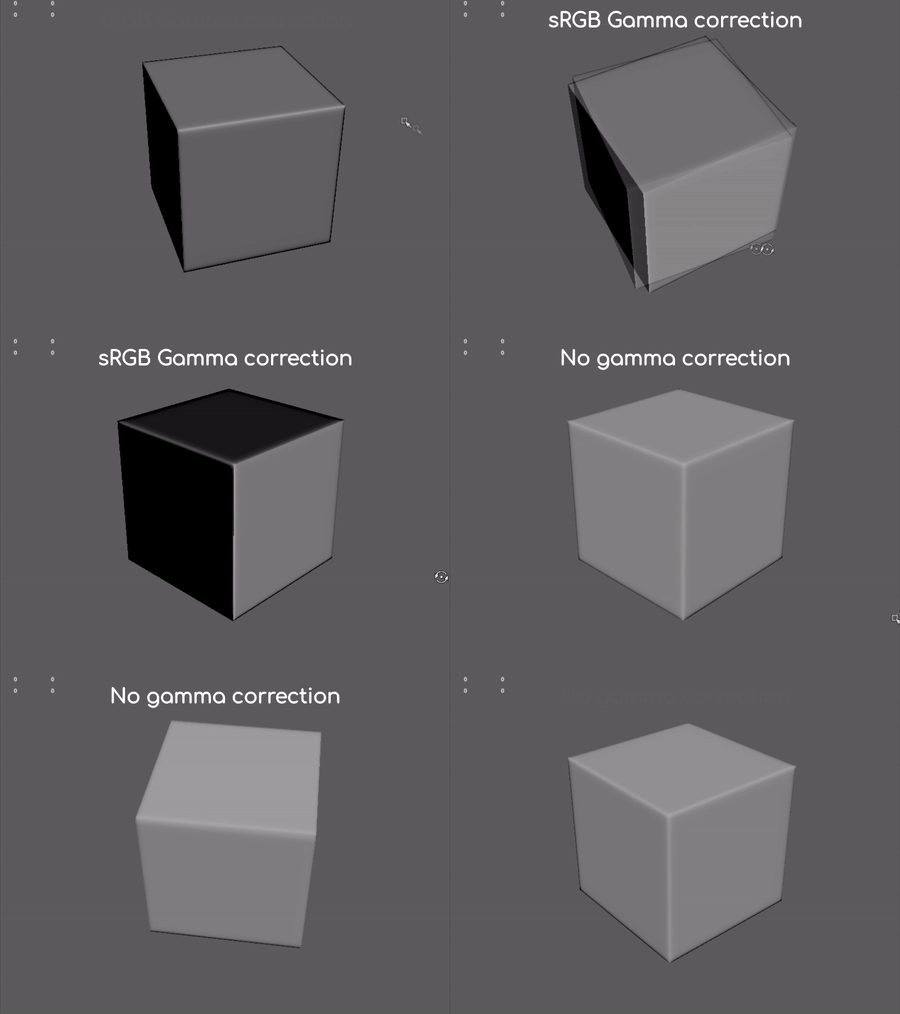
  • You are using gamma correction on your normal map:  normal maps are not regular images with color information. They carry surface normal information, and don't behave as color images. Gamma correction is an adjustment of the colors of images, and can change the color of your normal map in unwanted ways. To remove the gamma correction in your normal map, change the color space of your normal map to linear/linear color/raw, or untick the sRGB option in Unreal engine.


  • You are not using a tangent space normal map as a tangent space normal map: make sure your engine is not using your tangent space normal map as an object space normal map, a bump map, displacement map, etc...
  • Your lowpoly normals are different in your baking program from the lowpoly normals in your rendering program: this can happen if you lose smoothing groups/hard edge information during the export/import processess, if you are using custom/weighted normals and your rendering program doesn't support them or discards this information.
    In this case, compare the lowpoly in both apps and if they look different, try changing the import/export settings, the file formats you are using (obj files lose normal information) and the compatibility of your program with custom normals.


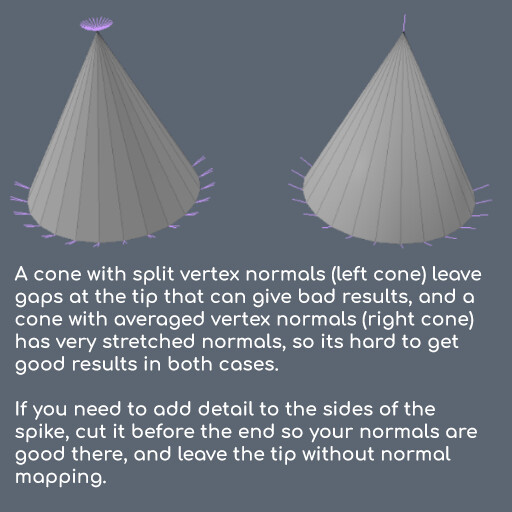
Problem: how do I make a normal map of a spiky cone?

Solution: you... don't. You don't need a normal map for everything.
The spiky cone is a classic example of this, but there are many other places where normal mapping just isn't the solution.

We use normal maps to change the normal direction of our lowpoly normals.
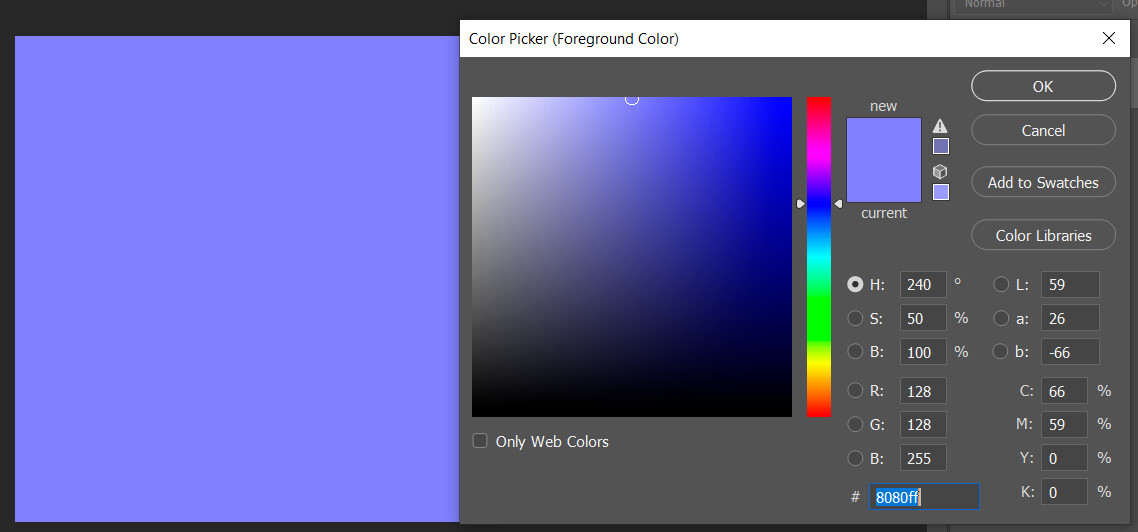
Sometimes, the direction of our normals is perfectly fine and doesn't need any adjustments. Other times, the normals of our lowpoly are extremely bended (such as in the case of a spike) and details from the highpoly don't align with the lowpoly surface properly. In these cases, I simply erase the normal map details using this color: 

This color is 50% red, 50% green and 100% blue, and doesn't change the normal direction of a tangent space normal map, so you can use it to erase details where the projection isn't good.
The spiky cone is just an example of one case where normal mapping might not solve your problems. What's important is that we remember that there are some cases where a normal map is not the best solution, and that they are limited and we can't expect them to do what we need for every situation. Sometimes we spend a lot of time trying to make a normal map work when we could just add the details to the diffuse texture or the lowpoly, and not rely on the normal map for that specific detail.


Problem: the details on my model look inverted

This is a very common problem, and can be seen in a lot of video games, even AAA.
As we saw in this tutorial, normal maps are textures that use the green, red and blue channels of a texture to change how light reflects from the surface of the model when it comes from the side, top and front of our model, respectively (keep in mind this is a simplified explanation and not 100% accurate).

The problem is that some apps consider that the green channel should show the model as lit from below while some apps consider it should show the model lit from above. This is sometimes refered to as "normal map right-handiness":

  • OpenGL apps (right handed, positive green channel): Blender, Maya, Modo, Toolbag, Unity.
  • DirectX apps (left handed, negative green channel): 3DStudio Max, CryEngine, Source Engine, Unreal Engine.
  • Substance Painter can work with both and export both types of normal maps.

Solution: invert the green channel of your normal map. Most game engines will have the option in the textures to invert the normal map, or you can manually invert the green channel of your texture in Photoshop (navigate to the channels tab, select the green channel and press Ctrl+i).


Problem: some parts appear flat, or are missing some details

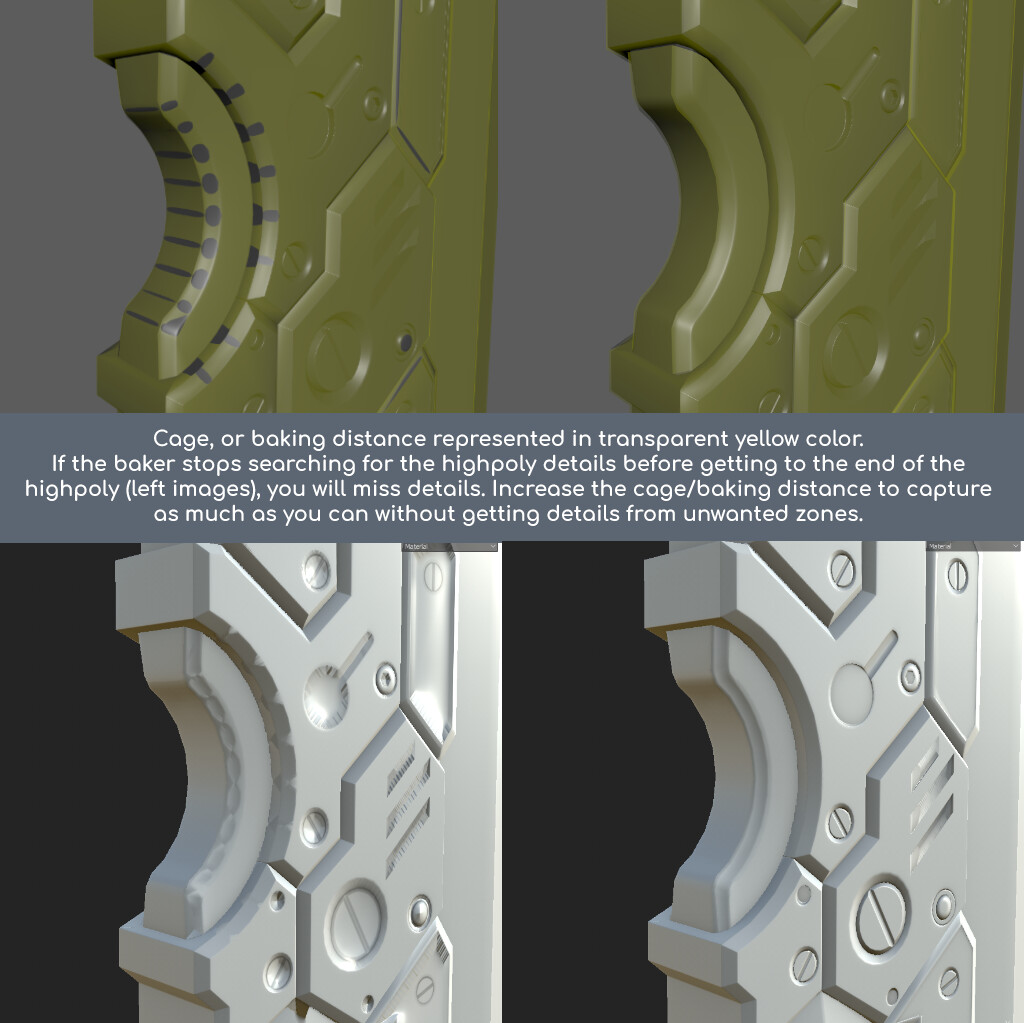
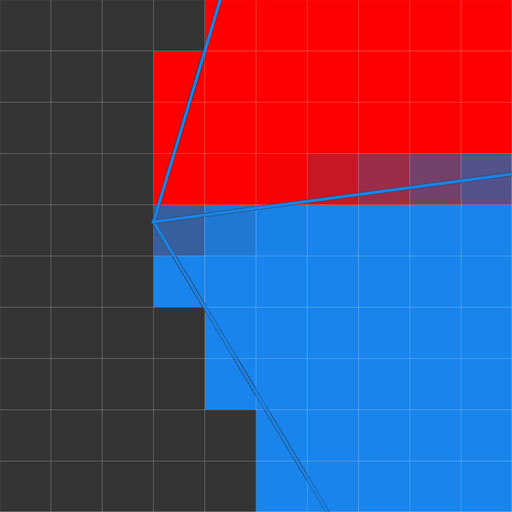
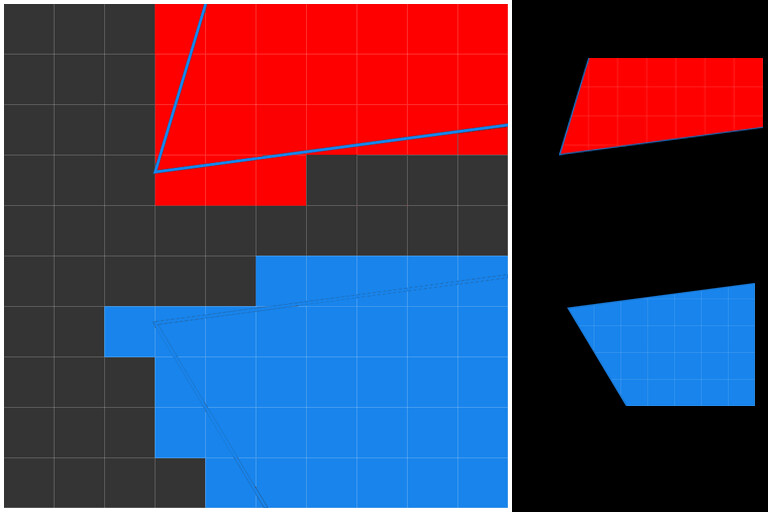
When baking normal maps, imagine that the baking program casts rays from the surface of your lowpoly following your lowpoly normals until the rays hit the highpoly and bend. Then, the baking program takes this information and stores it into a normal map.
These rays that have been casted can't travel forever, because they could hit a far away part of your highpoly and bend incorrectly, so the baking program limits how far away can these rays be casted and, sometimes, the rays could be stopped before they even hit the highpoly. In this case, we lose details and our normal map has zones of flat color.

Solution: we must control the baking distance:

  • Some programs will only look for details outside your lowpoly and ignore whats "inside" your lowpoly (though most modern bakers will look in both directions). In this case, adjust your models so the lowpoly completely fits inside your highpoly.
  • Other programs such as Max will use a cage, an "extruded" version of your lowpoly that you can modify to control with precision the limit of the baking process.
  • Other programs let you set a baking distance using a number (max frontal and rear distance in Substance Painter).

You can also try to make the lowpoly and/or the highpoly more similar to eachother, so the rays can get detail everywhere in your model. Another option is to bake two normal maps using different cage distances and mix them in different parts of your textures. Some normal map purists might scream at you, though.


Problem: my normal map has distorted details

This is a very common problem. It happens when our lowpoly normals don't align properly with the highpoly details, so they appear bended (in reality they are perfectly aligned if you look from the vertex normal direction), This usually happens because you have some faces forming an extreme angle. 

Solution: I wrote more extensively about this topic in a different tutorial, but the general solutions are: 

  • Soften your extreme angle by adding a bevel.
  • Convert the edge at your extreme angle into a hard edge/separate the faces into different smoothing groups.
  • Use custom normals/use weighted normals.


Problem: my normal map looks pixelated or has bands

Earthquake (AKA the god of normal maps) wrote a very good explanation of this problem here.

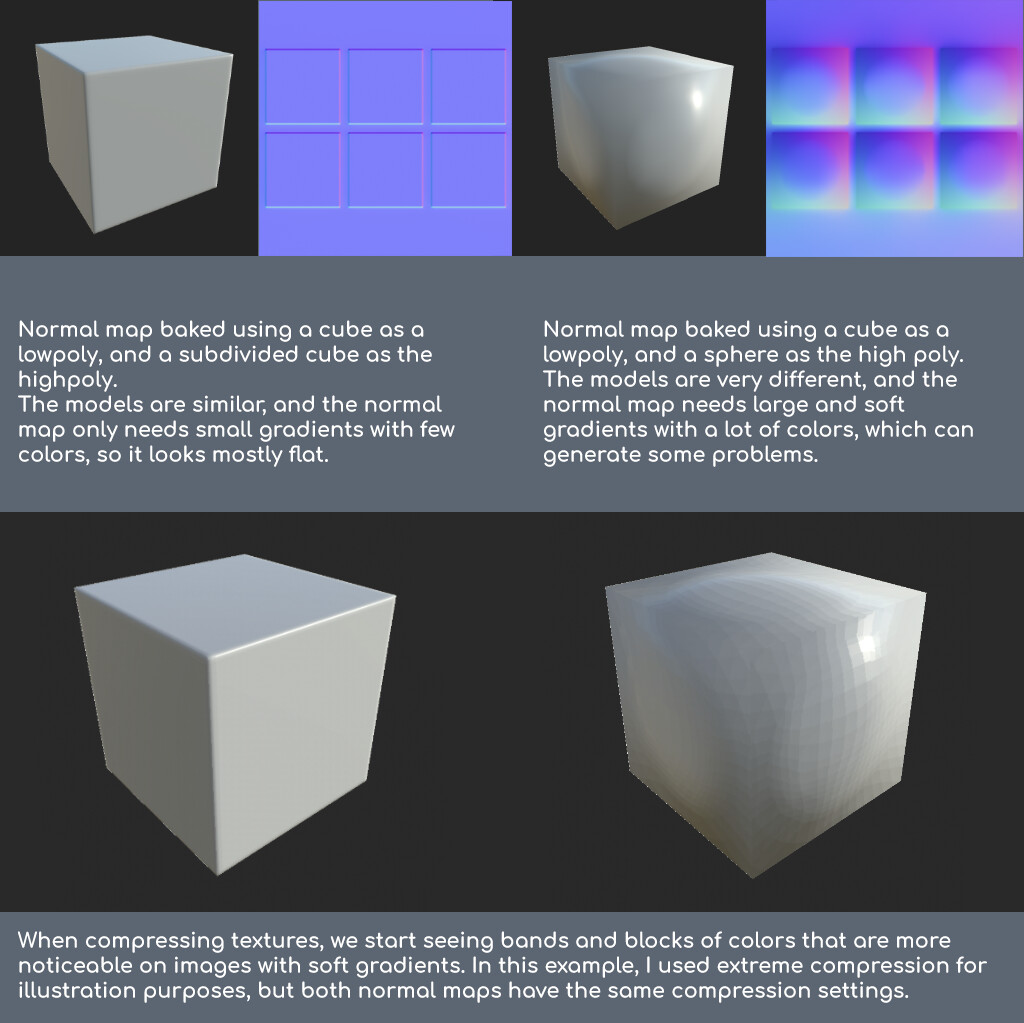
If your lowpoly and highpoly are very similar, most of your normal map will have the base normal map color, with different color where your lowpoly differs from your highpoly.
If we have the opposite situation, and your lowpoly and highpoly are very different, the normal map will have much higher color variety, and gradients will start to appear: 

These soft gradients are troublesome because we need a lot of colors to represent them, and the most common ways of compressing textures are based on reducing the total number of colors.

Solutions: 

  • Make your lowpoly more similar to the highpoly: this way, the normal map has to do less work, and it will look more similar to the first image, avoiding these large and soft gradients. Modifying the normals of your lowpoly so they align better with the highpoly could also help.
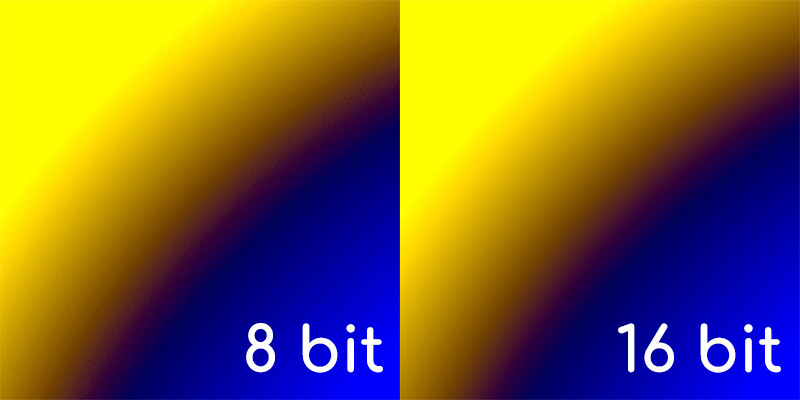
  • Use 16bit normal maps: by default, most images use 8 bit color depth. This means that each color channel of your texture can use 8 different values between 0 and 1. When you consider all 3 color channels, this gives us 256 possible colors.
    When we have soft gradients we might see bands in our model, because the image doesn't have enough colors to represent such a small change of color.16 bit images can use 16 different values for each channel, which means up to 65536 possible colors. This means a lot more range for soft gradients. Be aware that 16 bit images are larger in size than 8 bit (because they carry more information). Also, sometimes 16 bit images have alpha channels, and are referred to as 24 bit images.
    There are also images with higher bit depth, but they are not used for normal maps as 16 bit is more than enough.
  • Use dithering: Lack of colors in our textures is a problem that has been around for decades, and one solution that appeared decades ago was to use dithering: the idea is that we alternate pixels in our texture to represent the gradient, and it works fine when you zoom out the image. You can usually activate it when exporting your texture.
  • Make sure your normal map is correctly compressed: when textures are compressed, the computer takes zones of a similar color and merges them to create a "patch" of color, reducing the amount of colors in your image. This is usually fine for regular images, but terrible for normal maps: not only destroys your gradients but can also merge the information in your color channels. There are special compression algorithms designed for normal maps. Make sure your game engine is interpreting the image as a normal map (usually by selecting an option in your texture asset to mark it as a normal map) and the compression settings will be configured automatically.


Problem: there are some visible pixels on some parts of my model

The obvious solution would be to increase the size of your UV island for that part of your model, or use larger textures, but lets take a look at some less obvious solutions: 

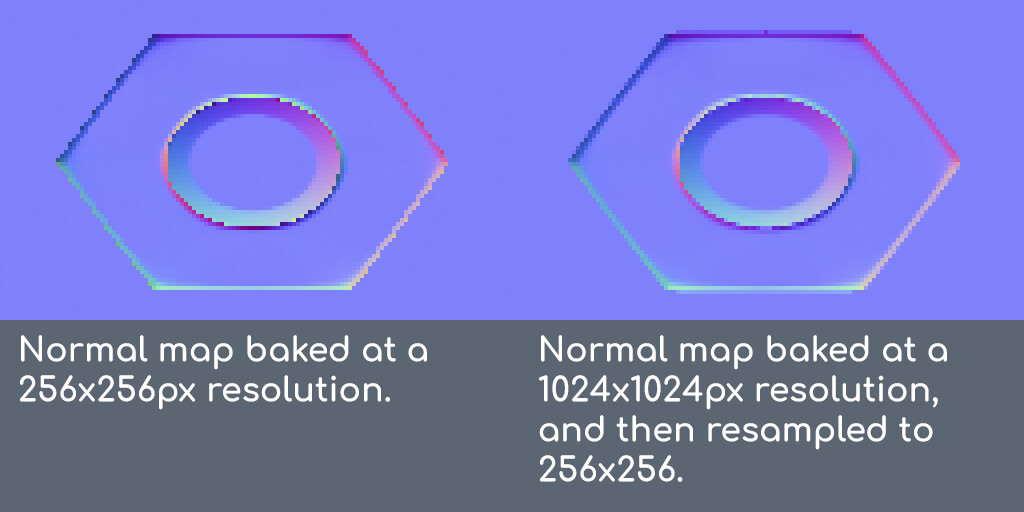
  • Bake at double your final normal map resolution and then reduce the size of your image:If you are using a 512x512 texture, bake your normal map at 1024x1024 resolution and then convert the image to 512x512. This way, each pixel of your final texture will take information from 4 pixels, making a sort of "antialiasing" and reducing the pixellation. This is also true for other baked images as well, and you will also keep a high-res version of your textures in case you need to increase the detail in some zones later.Notice how in this image the normal maps have the same resolution, but the one we baked at 1024 resolution looks more rounded and similar to the highpoly because it stored some extra information during the reduction process.
    Note: make sure that you use the Bilinear resample option when reducing the size of your normal maps, because other resample options might change your normal maps in unexpected ways. Thanks to milki2k for the heads up and his images.
  • You can stack your UV islands on top of eachother, so they use the same normal map information on different parts of your model. Just make sure you move one side of the model 1 unit outside the UV space so the baker doesn't try to get details from both sides at the same time.
    You can go even further and use trim textures or decals for some details to optimize your texture usage.
  • Textures use a pixel grid, and pixels are square. If you have some details that form a line, try to align this line vertically or horizontally. This way, the pixel grid and your texture details will align:

Problem: my model is symmetrical, but the normal map looks assymetrical

When applying symmetry to your model, the normal directions can change because the way that faces are connected has changed. Sometimes, this means that you can see a seam right at the center of your model. To avoid it, make sure your lowpoly normals right at the center are aligned and adjust the smoothing if needed.
Another possible cause is triangulation: when importing models to a game engine, they are always triangulated and sometimes, this process can change the lowpoly normals and some artifacts will appear at the diagonal of your lowpoly faces. To avoid this, triangulate the model before baking, bake the normal map and then apply the symmetry modifier. 


Finally, here's a small tutorial by Earthquake that helped me understand a little bit more about vertex normals and normal mapping. I talked about the same topics throught this tutorial series, but I wanted to include it here.

Also, check the polycount wiki for more information about normal mapping. 

Part 1: What normal maps are and how they work.

Part 2: Baking normal maps.

Part 3: Types of normal maps. 

Part 5: Normal map workflows.

PDF file (Gumroad) / PDF file (Artstation)

Optimizing Geometry

General / 13 November 2019

When thinking about optimizing geometry, it really helps me to focus on vertices. 

A general rule of thumb that I like to use is this: every vertex should have a function. If someone points at a random vertex and you can´t tell exactly why that vertex is there and its functions, you should delete it. 

So, what are those functions? Well, I made a list and here it is. Let me know if you find any additional reason why a vertex should be there:


It affects the silhouette.

Thanks to normal mapping, we can add a lot of detail to the inner parts of a model, making flat surfaces look more detailed than they already are. However, we can´t change the silhouette of the model using normal maps. That is the function of vertices, and probably the most important. 

A basic rule of thumb is: if a part of the model you are working on affects the silhouette, you should approach it with vertices in mind, and if it doesn´t, you can fake it using normal maps. 

It is needed for animation.

If your model deforms and bends, you probably need some extra geometry to ensure that no volume is lost during those transformations, and that you have enough vertices in your model to ensure a good silhouette when the model is bended. 

It helps me keep the symmetry of the model 

Symmetry is way more important that it may seem at first. It helps us optimize the UVs by mirroring the model and using the same textures on both sides, it will help you when editing the model later if its needed, and will help rigging in some cases. In general, the advantages of having a fully symmetric model with a middle loop outweighs the cost of having some extra vertices, even if they dont have any other function. 

Its helping the shading of my model

Like I said during my previous tutorials, hard edges in our lowpoly can give us bad normal maps, and soft edges may distort our lowpoly normals too much, and one solution is to add bevels to the model in order to improve the shading. 

This depends a lot on your game engine and your normal map workflow. For instance, Source engine gave me a lot of trouble with long triangles so I had to split them with extra vertices as they weren´t shading properly. This is specially true with triangles that are not part of a planar surface.

Someone specifically requested it

Sometimes, we need extra vertices for other reasons at very specific points. For instance, I was asked once to add vertices at some points of the model so that we had a vertex we could use to snap another model to the vertex. Another time, we made a particle system that emits particles from the vertices of the model so we had to add extra vertices. Sometimes we use vertex paint and we need more evenly distributed vertices so it looks better. 


When modeling, I also like to spend a moment to consider if a particular detail should be added to the model, or the texture. In general, you should always consider that you can only change the silhouette of your model using vertices (not considering material tricks and opacity effects), and all inside detail (details that don´t affect the silhouette) can be represented using this texture. keeping this in mind before even starting to model can really help you optimize your models and textures. 

Extra tip: all video game models are triangulated when imported. Sometimes the automatic triangulation can be unnappropiate, so I like to triangulate at least the parts of the model that may give me some trouble: mainly non planar polygons and pentagons (and other polygons with >5 sides)

This is normal 3: Types of normal maps

Tutorial / 05 August 2019

As many things in this industry, normal maps have evolved throughout the years and there are several types of normal maps and they may look different. Heres a compilation of the ones I can remember from memory, but there might be others as well. 

Tangent Space normal map

This is the most common normal map nowadays, and the one we have been talking about during this tutorial series. It modifies the normal direction of the model, based on the normal direction of its vertices (so we must control the vertex normals of our lowpoly).

Keep in mind that tangent normal maps are calculated using the directions indicated by the vertices. This means that, visually; if you rotate a UV island when baking, the normal map might look inverted; however it should be perfectly fine. 

Furthermore, if you preview a normal map, sometimes it might look inverted, or have seams. This is perfectly fine: remember that normal maps are calculated taking into account where the vertices are pointing to; and it might not always match the orientation of the UV islands.

In general, our priority when rotating UV islands is to use as much UV space as possible while avoiding stretching.

Mitkk tangent space normal map

Not every program calculates the average of the vertex normals the same way. This can lead to differences in how a normal map looks in different engines, so we should bake the normal map using the same method as the rendering program will use (this is called "using a synched workflow")

Mikk is a proposed way to calculate vertex normals aimed to be universal, so that every program calculates them in the same way. Workflow-wise, this means that we can use a lowpoly with all its vertex normals averaged (one smoothing group, or all edges smooth), bake a normal map using the Mikk tangent space and it will look just like the highpoly, without having to deal with smoothing errors or separating the hard edges in the UVs. I will upload a tutorial on how to do this in the future.

Keep in mind that this is still a tangent space normal map, but the normals of the models are calculated in a way that is universal and interchangeable between programs.


2-channel tangent space normal map

Turns out that using the information stored on two of the three channels of a normal map, the computer can calculate the third one, reducing memory usage but slightly increasing processing usage. Since memory is usually a bigger concern, this optimization is commonly used and some engines do it automatically (ie Unreal engine when we set a texture normal compression to "normal map"). Freeing up a channel on our normal map allows us to reduce the texture size or use the channel for metalness/roughness/opacity...
Usually, the discarded normal map channel is the blue one, so these textures look yellow. This optimization is sometimes done automatically by some engines, so you might see these textures from time to time in your projects. 

World space normal map

This normal map instead of modifying the normal direction of the vertex normals, ignores them completely and changes how the lowpoly bounces light in the world space (considers the normals of the vertices as aligned with the world when baking).

Think of a tangent space normal map as "you should reflect light to your right" and a world space normal map as "you should bounce light to the east".

These normal maps are more colorful and have more prominent gradients; they were used because you didn´t have to worry about the lowpoly vertex normals, but they have the drawback that you can´t move the model as it will look strange (we are setting a face so it always bounces light to the east. If you rotate it, the face will keep bouncing light to the east.).

World space normal maps are very rarely used in games nowadays, but they can be used to create some nice textures, ie: the blue channel shows how your model should bounce light that comes from the top of the model so you can use this to add a painted light to the texture. 

Keep in mind that the world coordinates change between applications: in Unreal, 3D Studio Max, Blender the Z axis is up, while in Maya, Modo, and Cinema4D, Y is up. This means that world space normal maps can break when changing between different applications. 

Object space normal map

This is an upgraded version of the world space normal map, and very similar. The idea is that when moving the model in the world, its world space normal map would change to reorient itself relative to the object.
Think of it as "this face will bounce light to the right of the model". If you rotate the model in the world, the normal map would change to reflect this change. However, this doesn´t work with deforming meshes, as it only takes into account the object transform. This is the reason that tangent space normal maps are more widely used today.


Bent normal maps

They basically combine the information of an AO and a normal map, bending the normal directions so that light tends to bounce towards the parts of the model that are exposed to the light.
These are basically used for improving Ambient Oclussion and avoid an effect called "light leaking", where a model could bounce light from parts that light shouldn´t reach. I never personally used them, but I would investigate them if I had a noticeable "light leak". You can find more info here, here and here

16 bit normal maps

Sometimes, if we a have a very smooth gradient in our normal map, we can see some banding. This banding comes from the lack of enough colors to represent the smooth gradient, usually from texture compression.
Even then, sometimes we have a large and smooth surface and these problems appear even with an uncompressed texture. In this case, we can use 16-bit normal maps, usually as .tga files, which have more colors and are larger in size then the usual 8-bit normal maps.
You can learn much more about 16 bit normal maps from the god of tutorials himself, Earthquake.
Keep in mind that there are other techniques that can be used to mitigate this problem, such as removing the normal map altogether (use only geometry to represent this smooth surface), making the lowpoly more similar to the highpoly so the gradients are less noticeable, or using dithering.


So, which one should we use?

Mikk Tangent space normal maps are 90% of the time the best option. Unlike world and object space normal maps, your model will be able to deform and the normal direction will remain correct.

You should bake your normal map using the same tangent space as the rendering program. The most used tangent space is Mikk, so you should use it when possible. 

And, if your normal map is showing some pixellation, consider using 16 bit normal maps or one of the solutions mentioned above.  

Those are basically all the normal maps I have encountered that I can remember. If you know about some other types of normal maps, let me know so I can include them in this tutorial!

Thank you for your time, and I hope you found this useful. Thanks as well to Shnya for his feedback and help.

Part 1: What normal maps are and how they work.

Part 2: Baking normal maps.

Part 4: Normal map troubleshooting guide. 

Part 5: Normal map workflows.

PDF file (Gumroad) / PDF file (Artstation)

This is normal 2: Baking normal maps.

Tutorial / 26 June 2019

This is the second part of a tutorial series Im doing about normal mapping. You can find the part one here, but its not required to understand this part.

Baking normal maps

The general idea of baking a normal map is relatively simple: you have a lowpoly with UVs and a highpoly model; and you transfer the normal information from the highpoly to the lowpoly. This way, the lowpoly will bounce light as the highpoly would. 

During this process, the baking program will basically cast rays from the lowpoly, following the vertex normals and searching for the higpoly. This is the most important aspect of normal mapping, and most problems people have when working with normal maps are related to this.
If you don´t control the vertex normals of your lowpoly model, you will lose control over your normal map. 

In order to control the smoothing of our lowpoly model, we can have split vertex normals (to create hard edges) or averaged vertex normals (to create soft edges).

Turns out that not all 3D programs use the same calculations to average the vertex normals. This means that your lowpoly will look different and have its vertex normals pointing at slightly different locations depending on your 3D program. This isn´t usually a big problem, since these deviations are very small, but can affect how your model looks; and these differences are exagerated when using normal maps, since your normal maps are modifying the lowpoly normals that are changing between applications. 

The 3D industry is working to fix this problem, and a standard has recently appeared, called Mikk space. This is a method of calculating vertex normals that all 3D apps could use, so vertex normal don´t change between 3D programs. Keep in mind that not all 3d apps use it yet.

Another way to reduce this is effect is not to rely too much on normal maps when baking. Try to match your lowpoly more closely to the highpoly and use more hard edges on flat surfaces. This way, your normal map won't have to do all the work and these small deviations will be less noticeable. 

The skewing problem

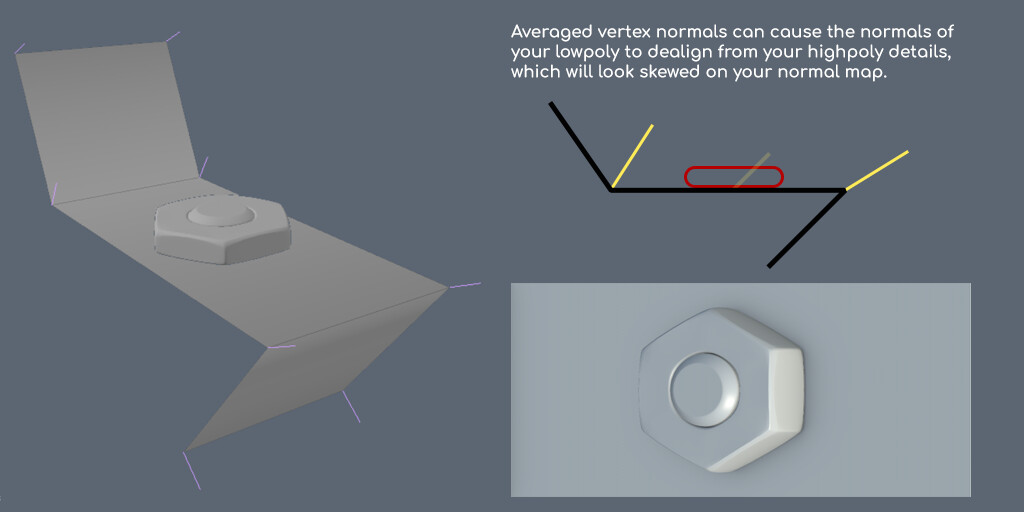
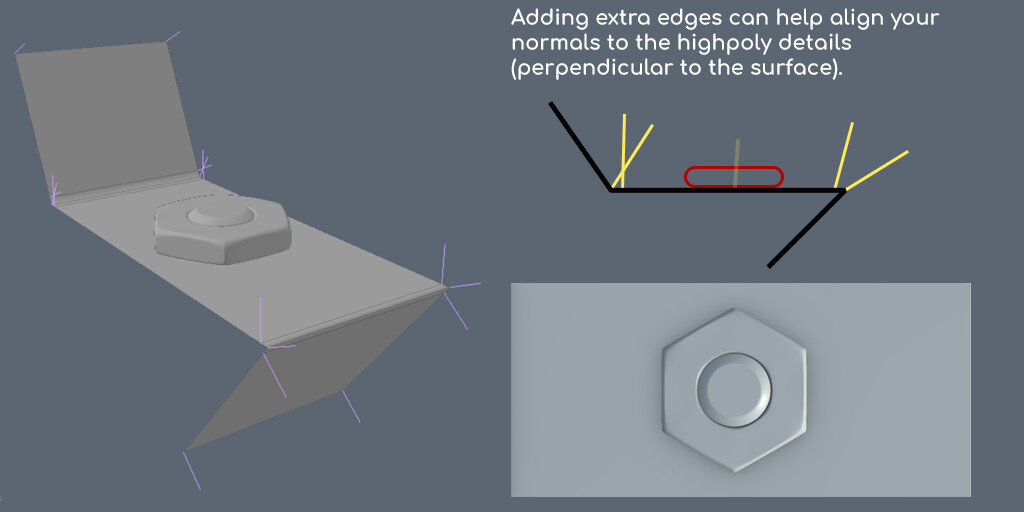
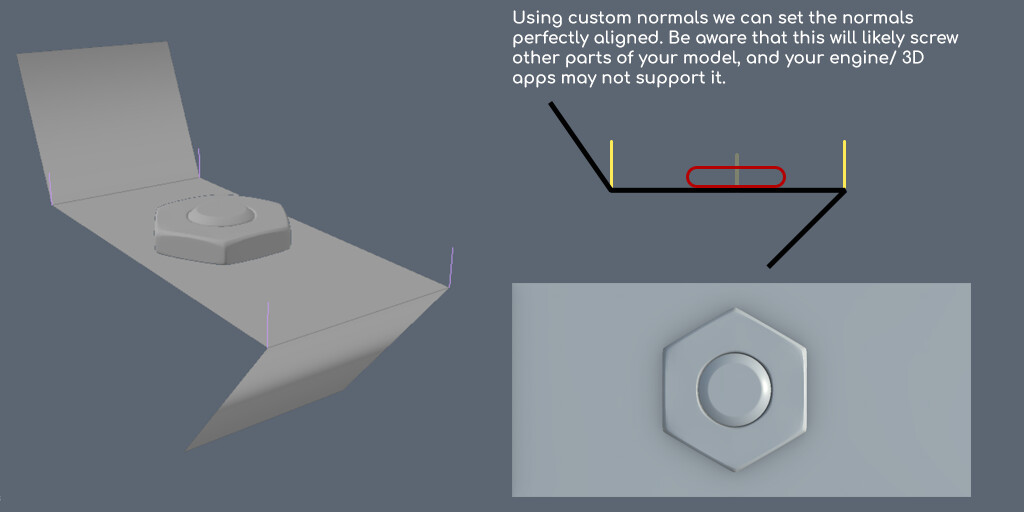
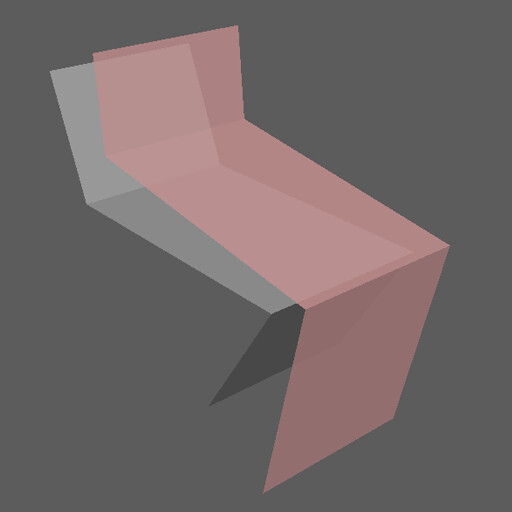
When the computer averages the normal direction of your lowpoly vertex normals, big changes in the angles of your surface can "skew" the lowpoly normals and they won't be perpendicular to the lowpoly surface. 

Since the normal map baker uses the lowpoly normal directions when searching for the highpoly details, if these directions are skewed; they will appear skewed on the normal map:

This is a very common problem, and several solutions have been found. There isn't a best solution, it really depends on the geometry.

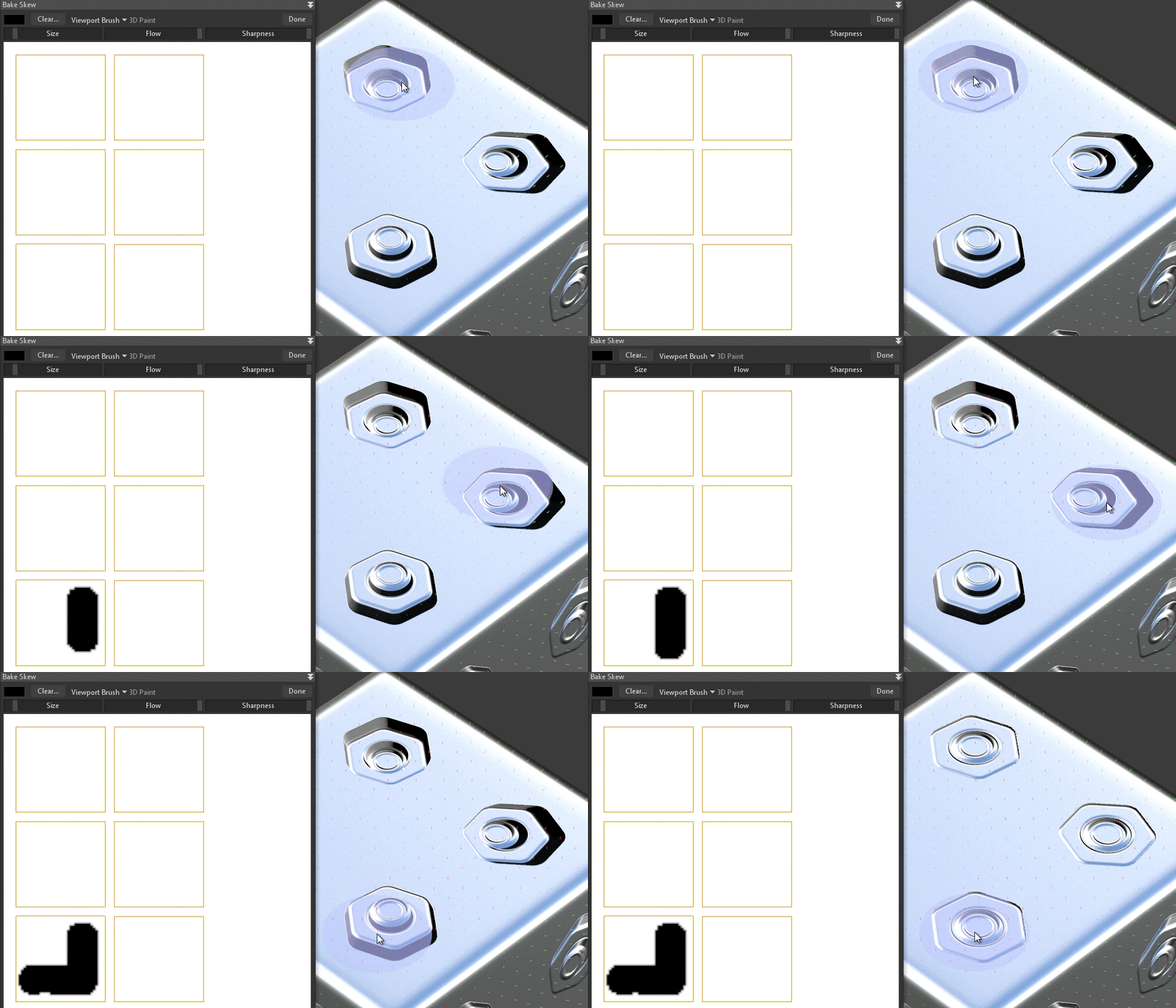
The first solution for the skewing problem is to rebake the problematic parts by modifying the lowpoly normals temporarily, so they are baked without skewing. Marmoset Toolbag has this option. Reddit user Tanagashi kindly explained to me that some programs such as xNormal can tesselate the lowpoly to add new vertices and make the normals perpendicular to the lowpoly surface, bake an object space normal map and then convert it to tangent space using the original lowpoly normals. Using this new normal map, the program can create masks to control where to use the original normal map and the one created from the tesselated lowpoly. 

We can also reduce the skewing problem by adding vertices, as one 90º angle can be split into smaller degrees, making the second transition less skewed. This obviously increases your polycount and, since you are adding geometry, I reccomend you use this extra geometry to also add a more interesting silhouette to your model.


Another solution to the skewing problem is to split the averaged vertex normals (making the edge hard/use separate smoothing groups): this way, each vertex will have several normals, each one perpendicular to the lowpoly surface. Keep in mind that, when the 3D program has a split vertex normal; it actually creates a duplicate of the vertex, so this will increase your vertex count and slightly decrease performance. Additionally, hard edges could also give you a "black edge" problem, as we will see later.

Finally, we can also reduce the skewing problemby modifying the normals of our models to bend the normals of our lowpoly so they are perpendicular to the highpoly details. Keep in mind that not all programs allow modified normals (Zbrush only has averaged normals, OBJ and older FBX files don't have custom normal information). There are basically 2 ways of modifying the normals: 

  • Weighted normals: this is an automatic method similar to the average vertex normals. The idea here is that when averaging the vertex normals not all faces will have the same strenght: larger faces will "pull" the vertex normals towards them with more strenght than smaller faces. This way, larger faces (which are usually more important) will have better detail projection. This works specially well with highpoly panels.
  • Custom normals: using tools from your 3D software, you can bend your lowpoly normals. This is a relatively new idea and there aren't many standarized tools for this. Keep in mind that bending the normals can create very weird unintended shading on other parts of your model, so this technique is usually combined with bevels. Some people call this technique "midpoly modelling".


Bake distance

By default,the rays that are cast from the lowpoly surface travel a limited distance, to prevent the lowpoly from recieving normal information from far away parts of the highpoly. This distance is usually called "frontal/rear distance", as the rays can be casted towards the inside, outside of the model, or both. You can see this distance represented in red in the following image:

Some 3D apps (3ds Max for instance) also allow us to use a cage. A cage is a "copy" of our lowpoly model that we can modify so that it encapsulates the highpoly perfectly. And, in some cases (not all), also allow us to change the direction of the rays, without changing your original lowpoly vertex normals. This can help get the best baking extremes and avoid skews, but keep in mind that you are not baking using the normal direction of your vertex normals, but in the end you will use a normal map to modify the actual lowpoly normals, so the result could look strange.

Bake seams

Sometimes, when baking normal maps, we can see some seams:

These seams appear when we have hard edges in the middle of a UV island. Why is this happening?

UV values can be very precise: we can have a vertex placed exactly at the coordinates 0.0001203123 U, and 0.340404021 V. However, textures are much less precise: pixels are limited, and they can't be split (we can't have half a pixel). 

So, a certain pixel might be exactly at 0.001 and a vertex might fall into 0.00134 inside the UV space. When considering the color of the pixel in the normal map, we have to choose a color that best represents the normal direction of the faces inside it, so we make an average: 

This is true for all baking processes, not just normal maps. However, this is much more noticeable with normal maps when we use hard edges. Normal maps indicate a direction and in the case of a hard edge, we have 2 faces looking in different directions, so they might have very different colors.

At the intersection between UV islands, the islands will compete to fill the pixels with their colors.This means that in the end, we will end up with pixels from island B modifying the colors of pixels from island A and vice-versa. 

Islands separated by smooth edges look very similar on the normal map (because their normal directions are averaged), so a small difference in color is not very noticeable. However, islands separated by hard edges usually look very different on the normal map (because vertex normals are split and each face is looking in a different direction), and the difference can be noticeable, generating along the hard edges. 

If we split the islands, they won't be competing for the pixel color: each island will be able to modify the entire pixel to fit its normal direction. This is why you should split apart the faces in the UVs when they are connected by a hard edge.

This video might also help you understand this process.

The rule of thumb is very simple: whenever you have a hard edge on your model, separate the faces connected by it in your UVs. 

In conclusion:

Once I have my lowpoly model ready and adjusted to the highpoly model as close as possible, I start working on the smoothing before UVs.
I set my smoothing for the lowpoly (if its organic, I start with a completely smooth model, if its hard surface I start with a set angle smooth of 30-60º; and tweak the model smoothing until it looks good).
Once I have a set smoothing for the model, I work on the UVs, making sure that all hard edges are split into separate UV islands (to avoid edge seams).
If I have skewing errors, I add additional edges (usually bevels, to keep a more rounded silhouette). This works for most of my models, but I could also fix the skewing errors if I used Marmoset Toolbag for baking, or by using custom/weighted normals.
If there are projection errors, I modify the baking distance/ cage, modify the lopoly/highpoly so they are better fit for baking, or erase the normal maps on certain, really hard parts such as the tip of a cone.

Next up, I´ll be making a troubleshoothing guide for normal map baking and discuss some of the most common problems and solutions. If you are enjoying these tutorials, please comment so I have some feedback, even if its negative. I´m doing this so I can learn and improve, but a complete silence can be discouraging. Thank you for your time, and I hope you are enjoying these!

Part 1: What normal maps are and how they work.

Part 3: Types of normal maps. 

Part 4: Normal map troubleshooting guide. 

Part 5: Normal map workflows.

PDF file (Gumroad) / PDF file (Artstation)