There are many ways to create and use normal maps. Let's take a look at some of the ways I know about making normal maps.
There is not a correct solution for each situation, in fact I use several techniques depending on what I'm working on, how much time I have, the target performance, etc... and most of the time they are interchangeable. I will try to explain que advantages and disadvantages of each method, but in a lot of cases they will be very similar.
Completely smooth lowpoly
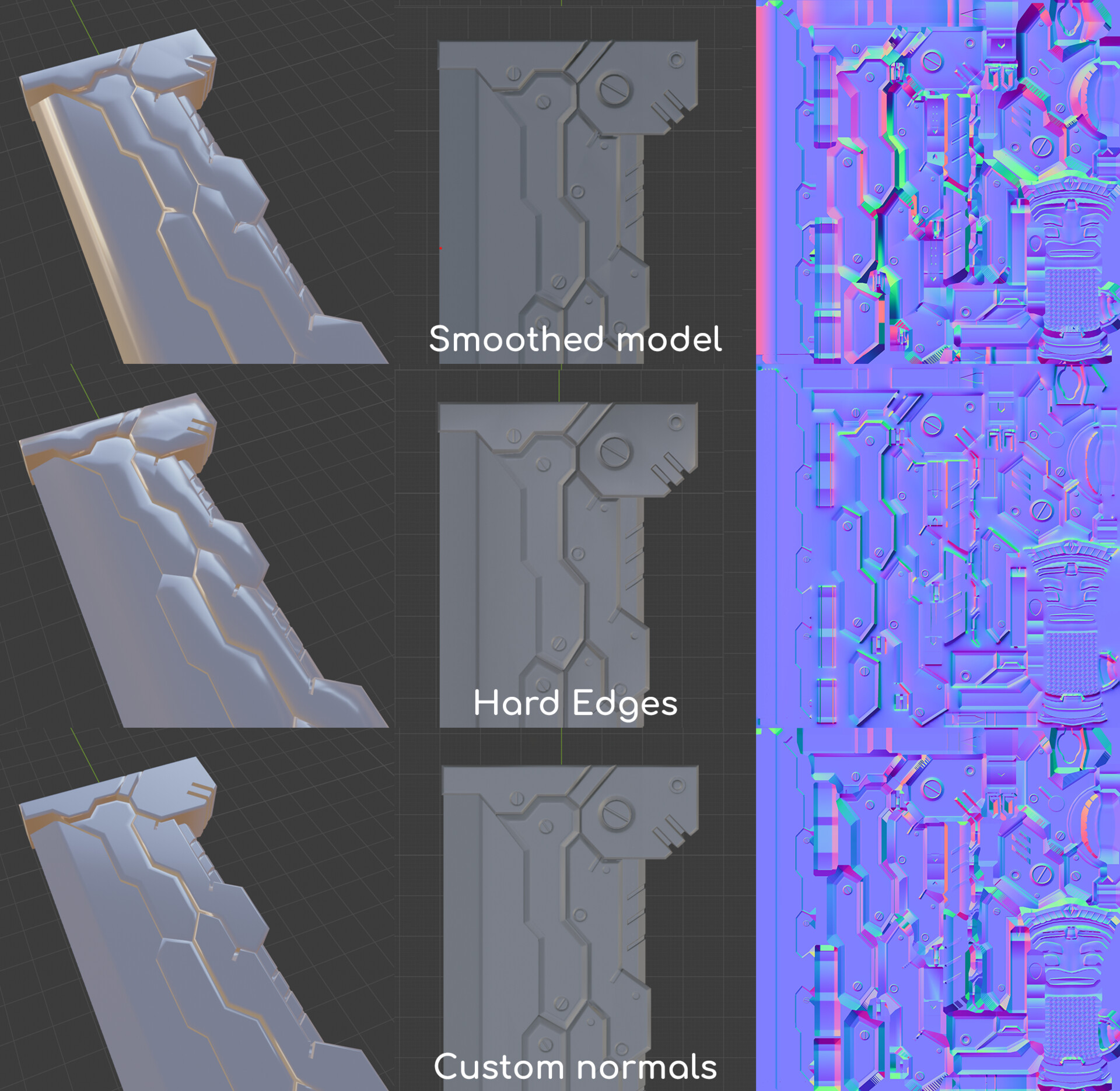
With this method, all of our lowpoly normals will be averaged: all edges are set to smooth, or we have a single smoothing group.
This means that the normal map has to do all the work. Your lowpoly will usually look very different from the highpoly until we apply the normal map.
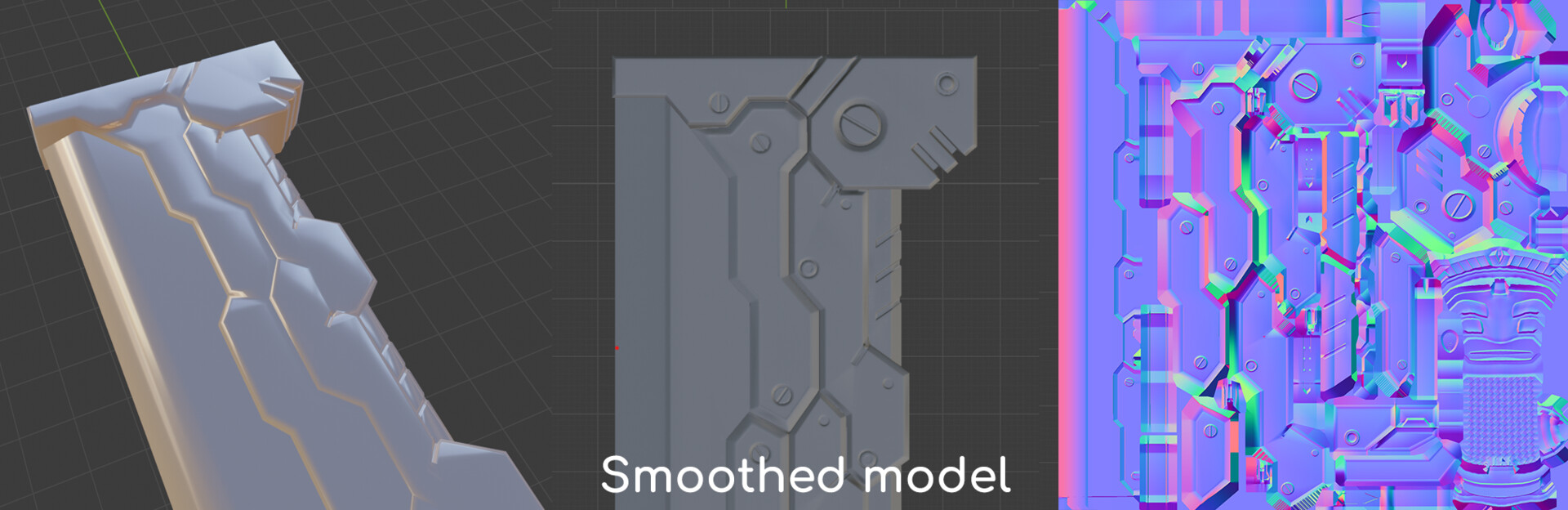
The main advantage of this method is how easy it is for artists: you don't have to worry about separating UV islands, setting up the smoothing of your model or tweak the normals of your lowpoly. You make your lowpoly and highpoly, smooth the lowpoly and hit the bake button.
However, it has some drawbacks:
- It's important that the tangent space is set up correctly. Since we are relying a lot on the normal map, minor changes in how it is set up will be specially noticeable with this method. In general, make sure that your 3d modeling, baking and render programs all use Mikkts as their tangent space, and that all models are exported and imported accordingly.
- Because the normal map has to bend the normals a lot, your normal map will likely be more colorful and have a lot of gradients. This means that your normal map file size will be slightly larger, and it is more likely to have compression artifacts.
To compensate for this, it is common to increase the resolution of the normal map when using this method, or reducing the normal map compression. For PC games, this is not a big performance hit, but for mobile games it can be noticeable if you have a lot of normal maps. - Removing the normal map from your model will usually make it look bad (specially if it has a lot of sharp edges).
- Adding normal map detail to your textures (ie in Photoshop) can be troublesome.
- The lowpoly normals are more likely to bend and misalign with the highpoly surface, and skewed details are more likely to appear.
This is the method I prefer when I'm working on organic models, because they usually look better when 100% smooth, and the normal map doesn't have a lot of work to do (because the surface of the organic model is usually smooth and similar to the smoothed lowpoly).
Models with hard edges (with smoothing groups/hard edges set up)
With this method, we set some of our vertex normals to be split, by setting up smoothing groups or selecting hard edges. Some peoply like to set this up using an angle to determine if an edge is soft or hard (common angles are 30, 45 and 60º), but I prefer to set them up by hand (while also thinking about where to put my UV seams).
Remember that wherever you have a hard edge, your UVs should be split to avoid visible lines along your edges in your normal map.
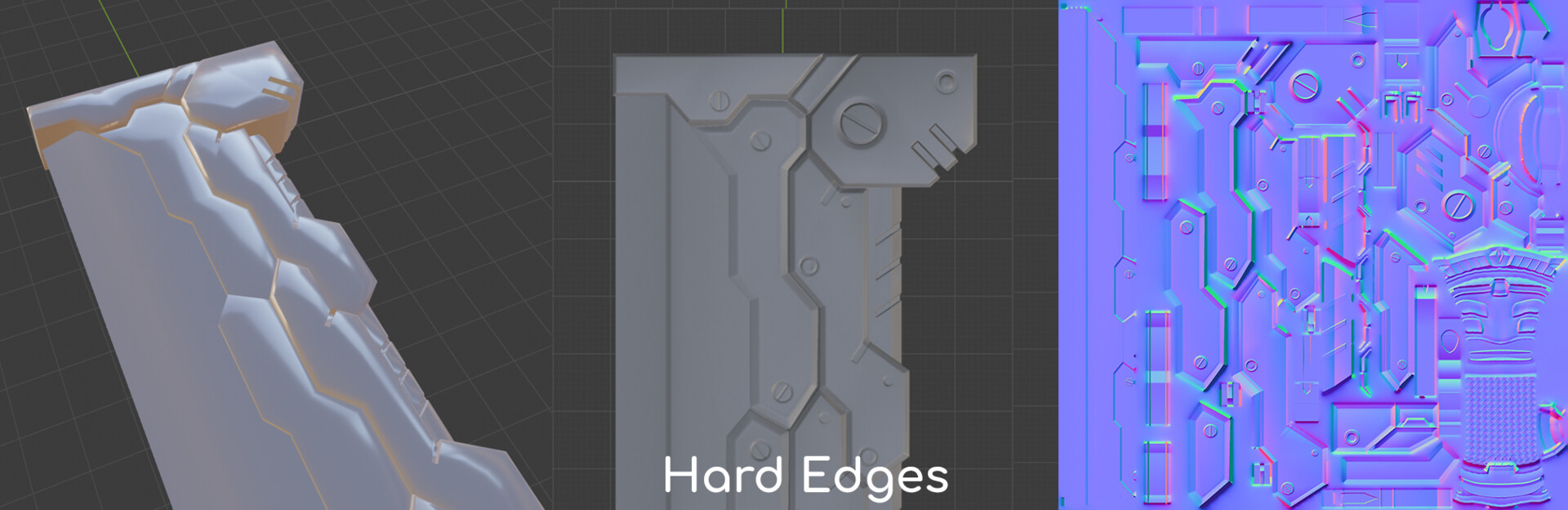
- In general, it requires a bit more work than the first method.
- You should split the UVs wherever you have hard edges to avoid these visible lines along your edges, which can make working with certain UV islands more difficult (i.e: hand painting a part of your model that has separated UVs can generate unwanted seams). Luckily, programs such as Substance Painter, Mari or 3D Coat have solutions for this.
- Setting up hard edges and splitting UVs will slightly increase your vertex count, however this is usually negligible.
With this method, we don't rely as much on the normal map to control the shading of our model, so we can for instance remove the normal map when the object is far away and it will still look decent (the example above is not a great one, but this can work for other models); or we can use smaller or more compressed normal maps.
On flat surfaces, we can use hard edges to align the lowpoly normals with the hard surface. If the lowpoly and highpoly surfaces are perfectly aligned (ie: they are both flat), the normal map in this area will be flat, which makes adding and removing normal map details to the texture effortless.
Personally, I use this method the most (because I feel I have more control and options in case something looks bad); and specially when I'm working on a tight budget. Lately, I have been avoiding it on certain hard surface assets, because they would need a lot of hard edges, which means a lot of UV islands and they get harder to work with.
Custom normals workflow (& midpoly approach)
There are some ways to directly modify the normals of your lowpoly, but not all 3D programs have this option and they differ quite a bit. The most common way is to use weighted normals, so the program automatically reorients the normals towards the larger faces. Another way of modifying the normals is to select a face and align its vertice's normals with the face normal, so they all point in the direction of the face.
It is important that we export, bake and import models with custom normals correctly. Most 3D engines will accept models with custom normals, however it is an option that is usually checked out by default.
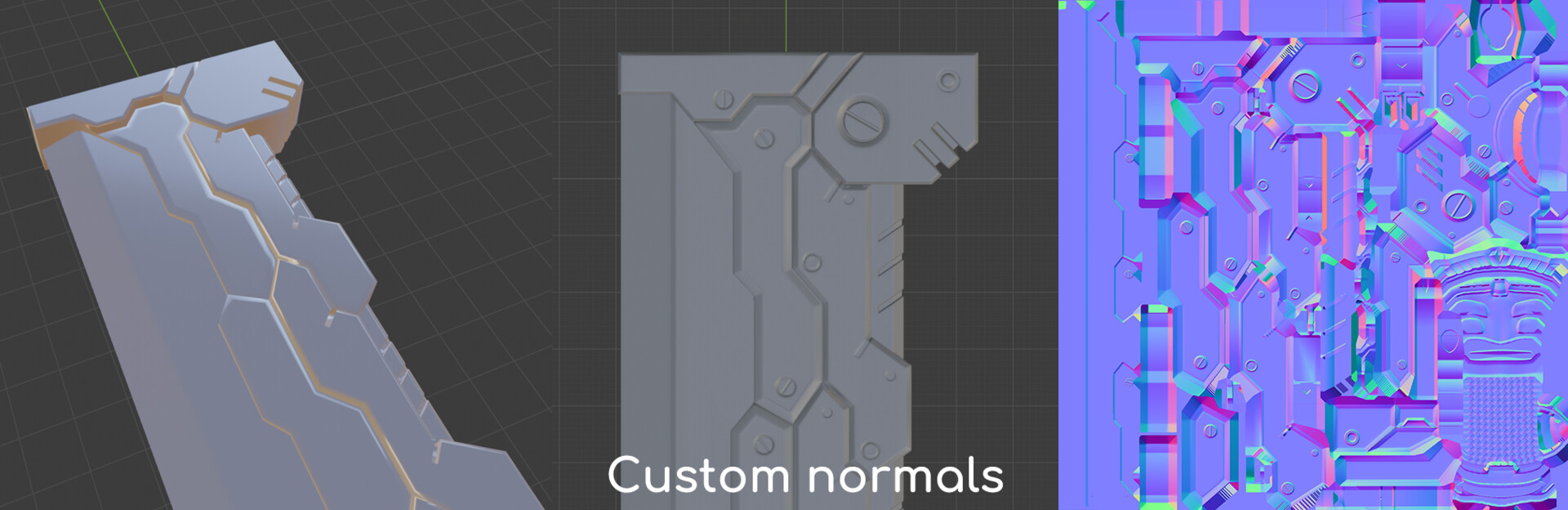
This method has spawned a new wave of modelling called midpoly modelling. This is more a modeling approach than a texturing one. The general idea is that, instead of generating our details using normal maps, we generate them directly modifying the normals of our lowpoly.
When modeling hard surface models, we want to have large smooth surfaces with a smooth transition in between them (instead of a hard edge, which looks less realistic). We can accomplish a similar result using custom normals:
First, we add a bevel to the edge that is placed in the transition. Then, we modify the normals of the resulting vertices, so they point towards the main faces. This way, the normals of the lowpoly will point towards the larger faces, and the transition in the normal directions will be limited to the beveled edge.
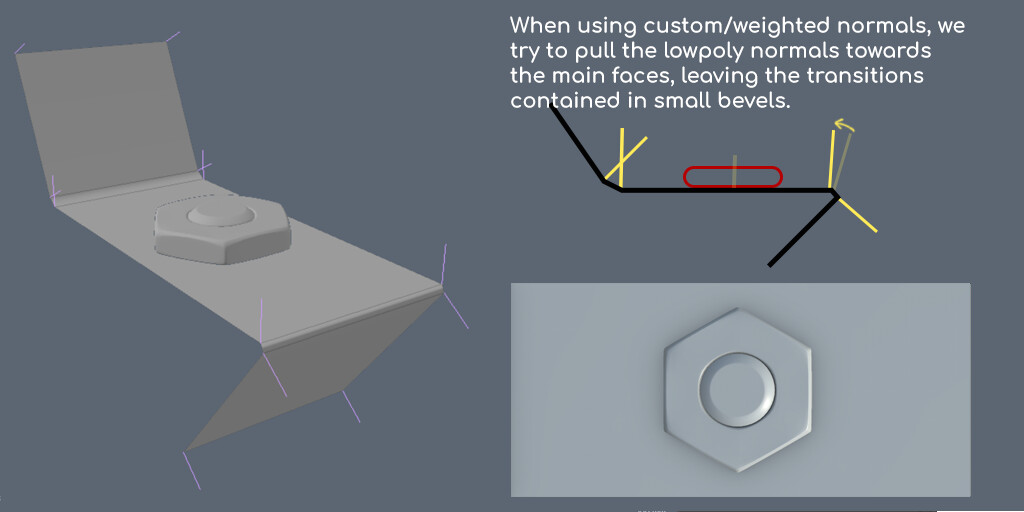
Once we have our midpoly set up, we can combine it with normal maps to easily add details in the flat surfaces. In the beveled zones, normals stretch a lot, so working with normal maps in these zones is tricky.
Here's a side by side comparison of the three methods described:
Other techniques and experiments
There are a few other techniques that we can use to create/use normal maps. I'm not going to delve too deep into them, because they are not as widely used nowadays than the previous ones and I'm not too familiar with them.
-
Normal mapped pixel art: we can add normal information to pixel art sprites and light them, to give the impression of volume. Basically, we tell each pixel where to point, so that when a light hits it, it reacts differently than pixels facing other directions.
I have found three ways of doing this:- Using a special program that roughly translates color information into normal orientations, such as this one.
- Creating greyscale versions of the sprite lit from different directions and using them to compose a normal map. As we saw in this is normal part 2, we can consider a normal map a combination of 3 images: the model lit from the left stored in the red channel, above/below stored in the green channel, and the model lit from the front stored in the blue channel.
So, we can draw our sprite lit from above/below, left and front; and compose a normal map using these images as channels of our normal map, as seen with this program. - Creating a height map and using a program to convert its information into normal map: similar to the previous technique, but much faster since we only have to create one additional texture instead of three.
-
Hand drawn normal maps: specially tailored to the kind of person that sees Dark Souls and thinks: this is too easy, I'm going to do it blindfolded. These techniques are usually too slow to actually use in a production, and most of the time I would suggest just sculpting from a plane in zbrush and export a normal map. Here are some techniques:
- Creating a height map and using a special program to convert its information into normal map (just like with the pixel art example). Probably the fastest and more convenient way of creating a normal map from hand drawing.
- From a sphere reference: Using a normal map sphere as a color picker, we can draw matching the angle of the surface to the corresponding color on the sphere.
- Using special brushes: Krita has a special brush that can convert the pen tilt to normal map information.
-
Composing normal maps using textures: Using a library of normal map textures, we can combine them to add details to our normal maps.
These details can be combined together. Keep in mind that blending normal maps is not as straightforward as one might think. - Image filters:some programs can approximate normal map information using diffuse/albedo/basecolor maps. These are usually innaccurate, but they might work fine for background/small assets.
- Matcaps: Matcaps are simplified shaders, that determine the color of pixels on screen based on the normal direction of the geometry. We can apply a normal map matcap to any geometry, and render a still image to generate normal map textures quickly. This can be easily done with Zbrush to generate tiling textures.
- Detail normal maps: in some cases, we can complement a normal map generated from a highpoly with extra details (i.e: we can combine a head sculpt normal map with skin pores textures), and we can load this extra normal map only at certain distances to reduce memory usage while keeping details at close ranges.
Part 1: What normal maps are and how they work.